Utility
Utility nodes remap the values depending upon the node’s algorithm.
Curve
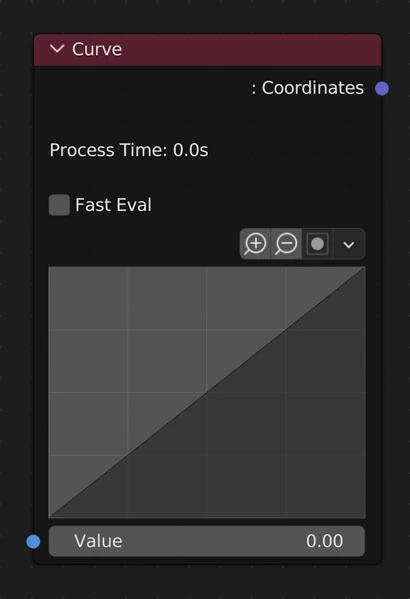
Remap Value to custom curve.
Fast Eval
Use a custom multi-threaded formula for evaluating the curve.
Curve
The visible result of the function used to remap input values.
Reload Curve
Blender doesn’t allow for creating or saving of UI curves. In order to get a node as we have in NodeScapes we create an RGB Curve shader node in a hidden node group. If this node group or the source node is deleted, the curve in the NodeScapes node will disappear and reveal this button. Clicking it will recreate everything it needs to in order to have the curve again. It will also recreate the curve if the curve node had been executed previously.
Understanding the Curve Node

Animated representation of the relationship between the x-axis (input values) and y-axis (output values)
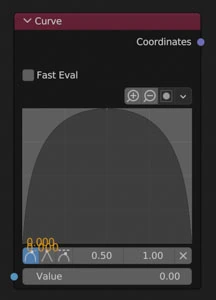
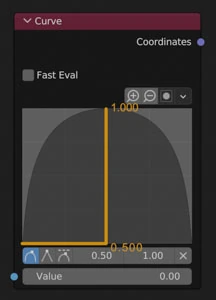
The curve node is just a graph. It takes the values (heights) and passes them through the curve. The curve is just a visual representation of a mathematical formula or function or func (\(y=x\), \(y=2x\), \(y=2x^2\), etc.). So if we look at the example curve here we see that if we plug in an input value of 0.0 (\(y=func(0.0)\)) we will get an output value of 0.0 because where the x-axis equals 0.0 the y-axis also equals 0.0 on the curve (ex. 1 below). If we plug in 0.5 as the input value (\(y=func(0.5)\)) we get an output value of 1.0 because where the x-axis is 0.5 the curve is at 1.0 on the y-axis (ex. 2 below).
| Input of 0.0, Output of 0.0 | Input of 0.5, Output of 1.0 |
|---|---|
 |
 |
Examples
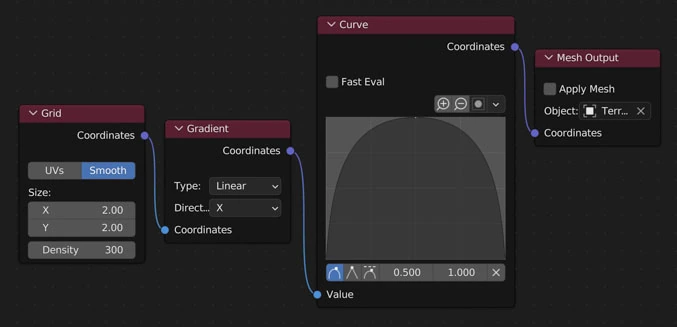
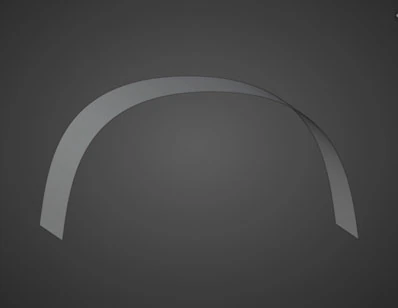
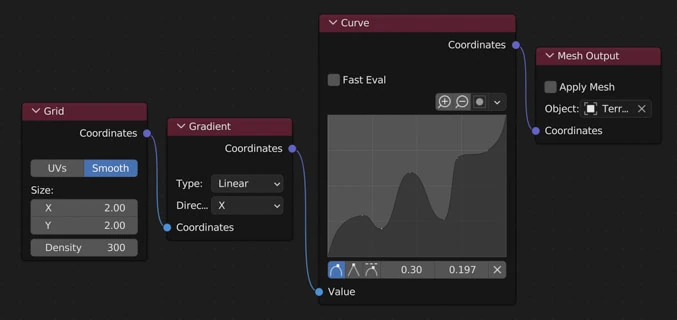
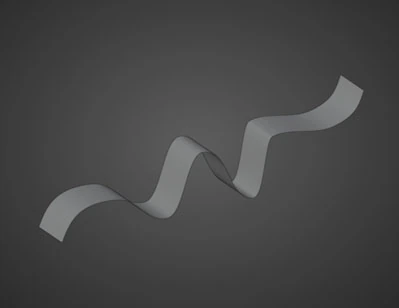
Using a gradient node we can visualize the curve in the geometry.
Bell Curve
| Node Layout | Result |
|---|---|
 |
 |
Squiggle Curve
| Node Layout | Result |
|---|---|
 |
 |
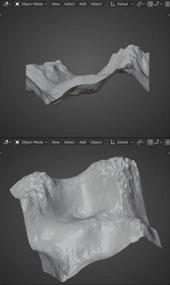
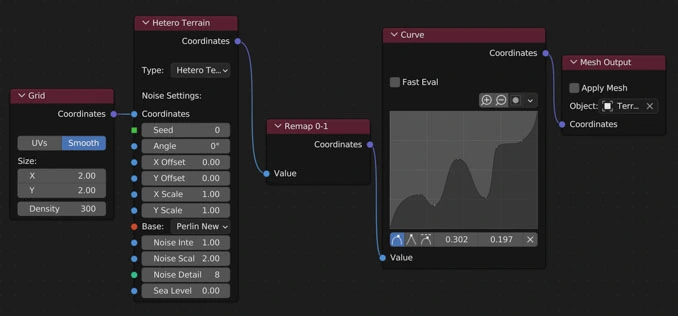
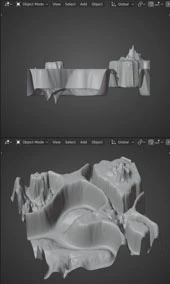
Noise with Curve
| Base Geometry | Node Layout | Result |
|---|---|---|
 |
 |
 |
Edge Fade
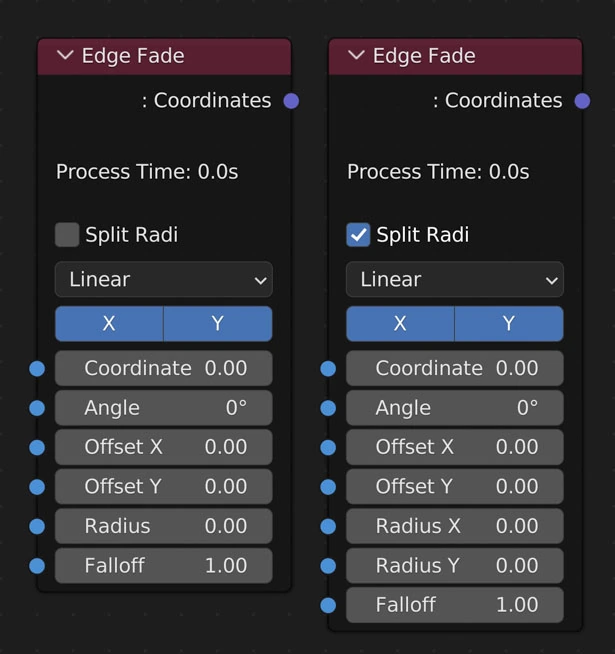
Fade Value to 0 as it gets closer to the edge of the falloff.
Split Radi
Split the radius up into X and Y in order to create an ellipse fade off cone
Fade Type
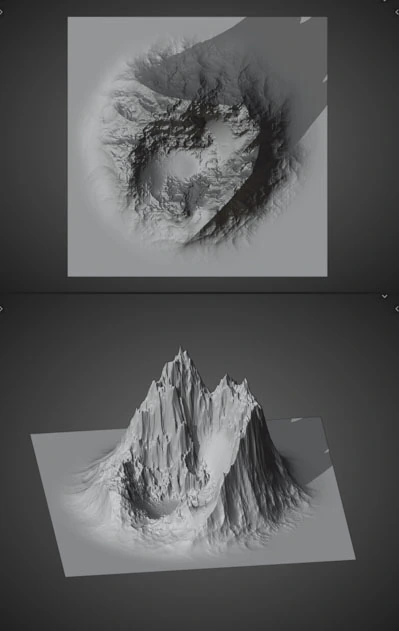
Linear: Fades out linearly ( each value is equally less than the one before)
- Ease: Eases in and out
- Ease More: Greater ease in and out
Fade Direction
X or Y
Coordinates
The coordinates you want to fade out
Angle
Rotate the fade direction
Offset (X, Y)
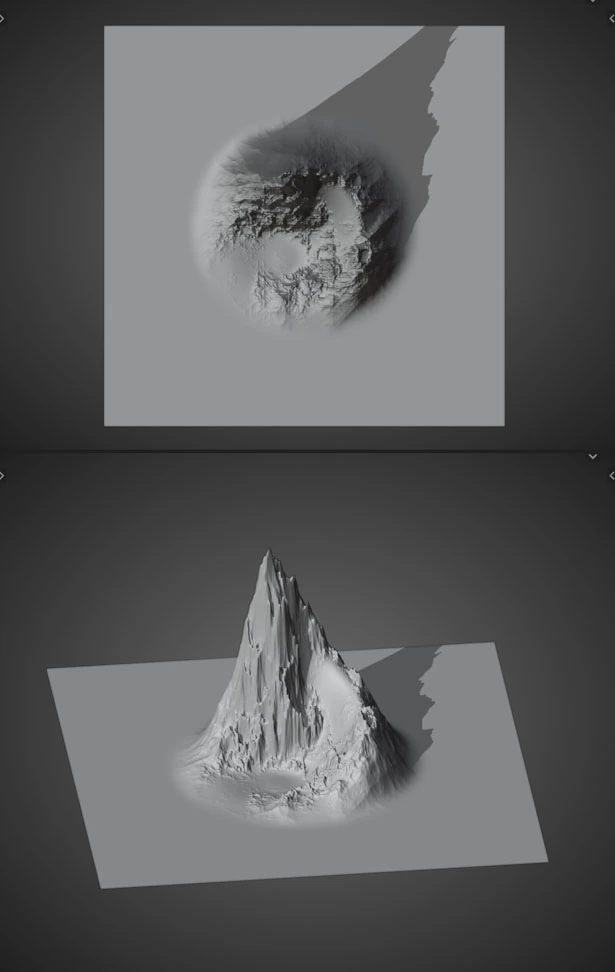
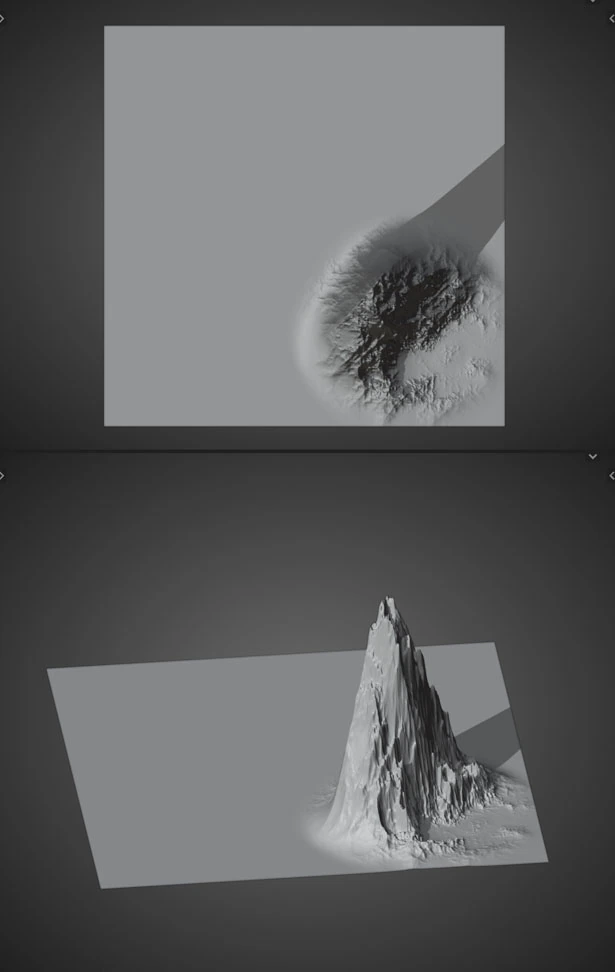
Moves center of Fade relative to the center of the object
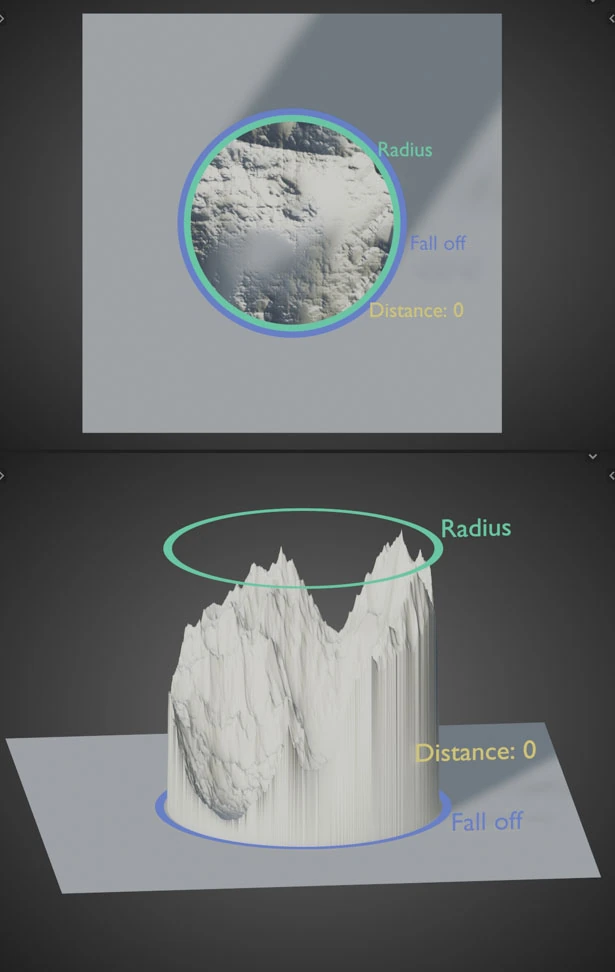
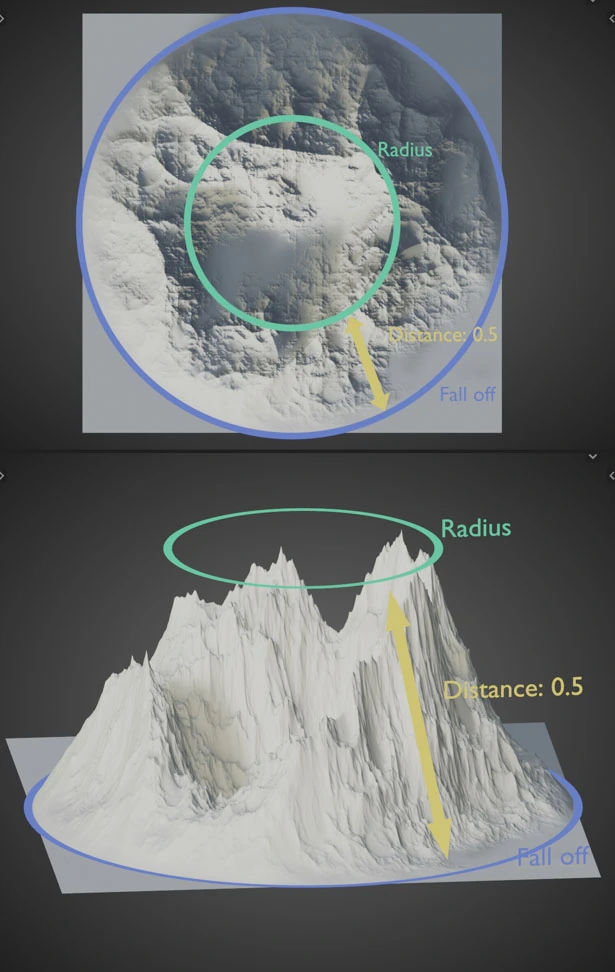
Radius
Distance in Blender units to start fading
Falloff
Distance away from the Radius in Blender units to reach 0
Examples
Base
| Node Layout | Base Geometry without Edge Fade |
|---|---|
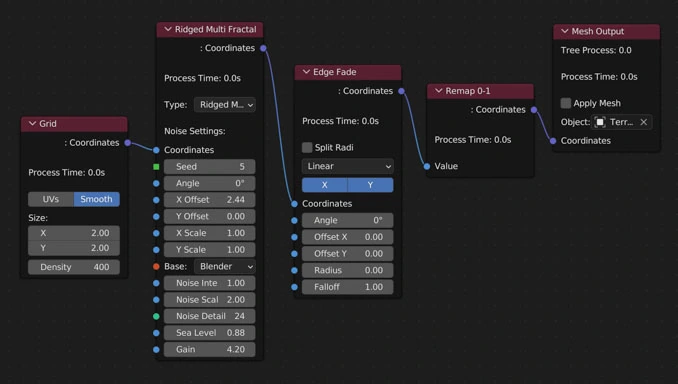 |
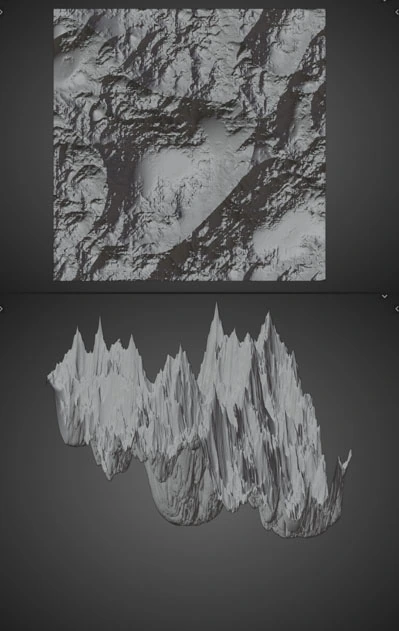 |
Fade Type
| Linear Fade | Ease Fade | Ease More Fade |
|---|---|---|
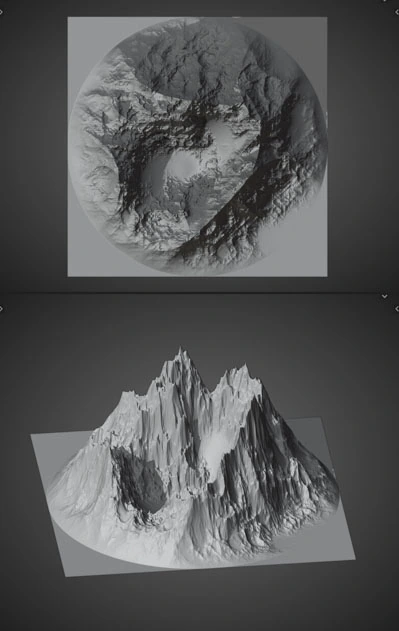 |
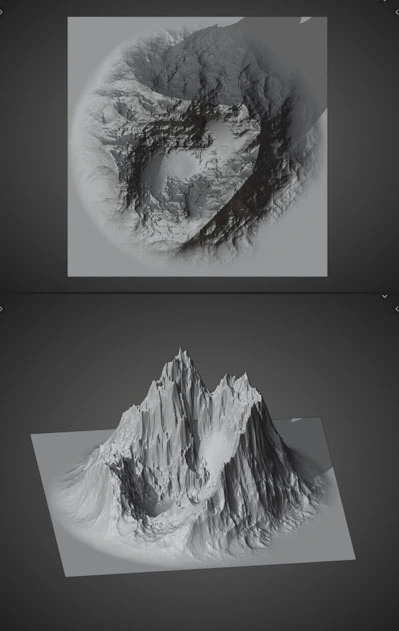 |
 |
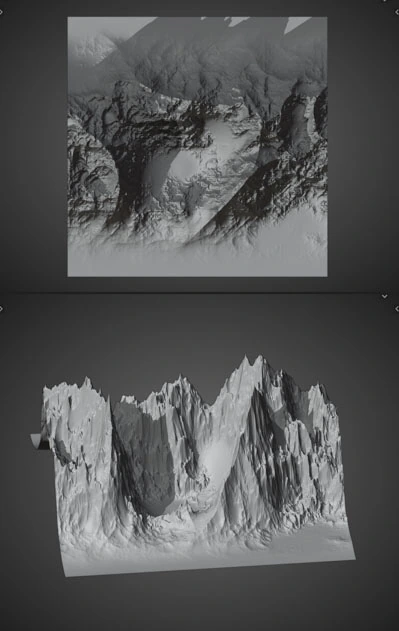
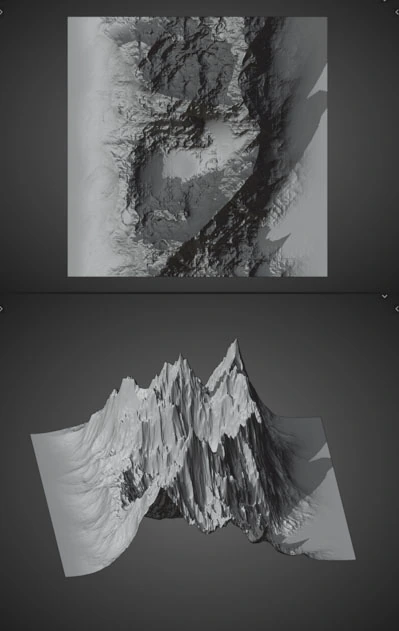
Fade Direction
| Fade only in the X direction | Fade only in the Y direction | Fade in the X and Y direction |
|---|---|---|
 |
 |
 |
 |
 |
|
Radius/Falloff
| Radius: 0.5 | Radius: 0.5 + Falloff: 0.5 |
|---|---|
 |
 |
Offset
| Base Offset: (0, 0) | Base Offset: (0.5, 0.5) |
|---|---|
 |
 |
Split Radi
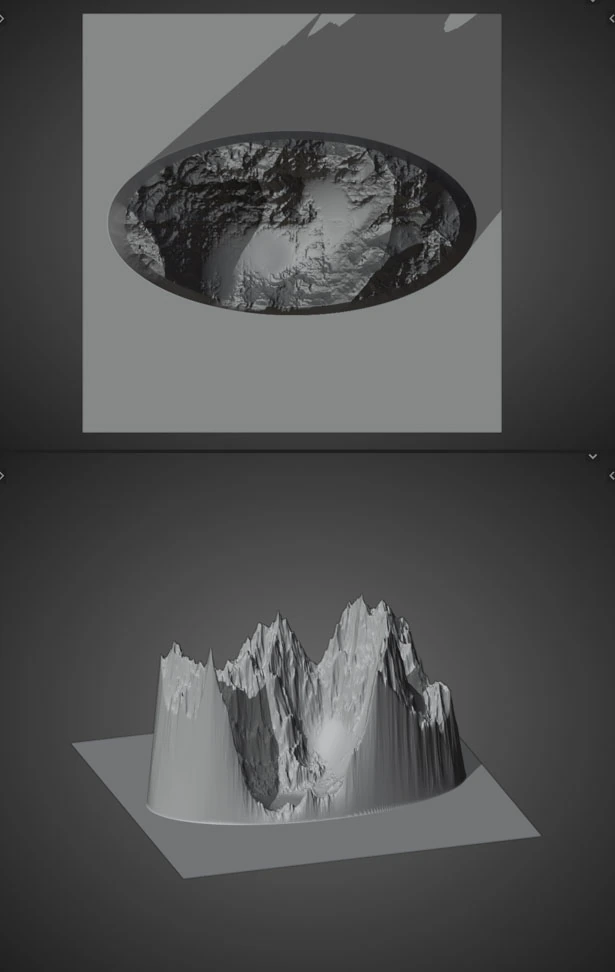
Split Radi: (0.4, 0.8)
Angle
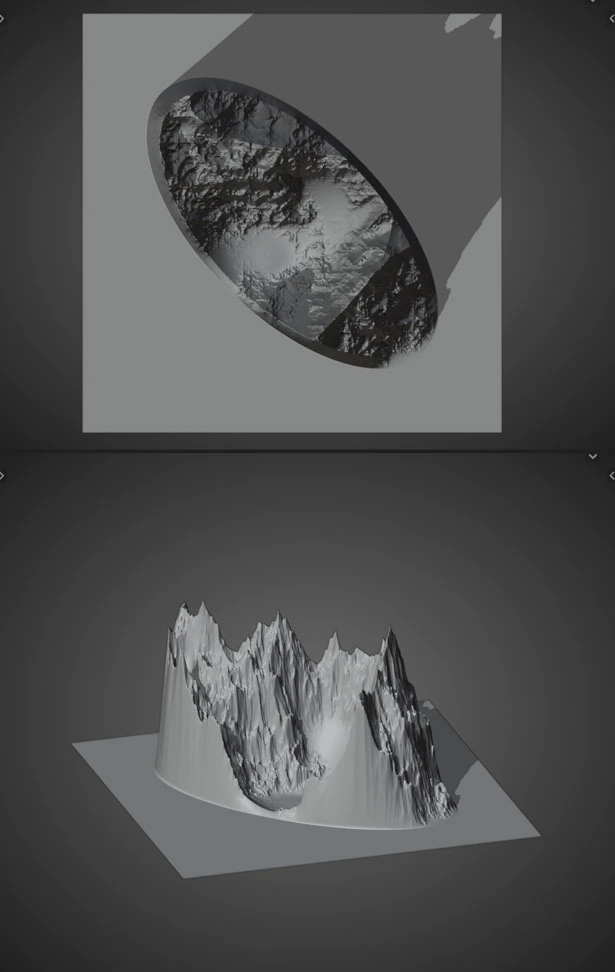
Rotated 45º
Gradient
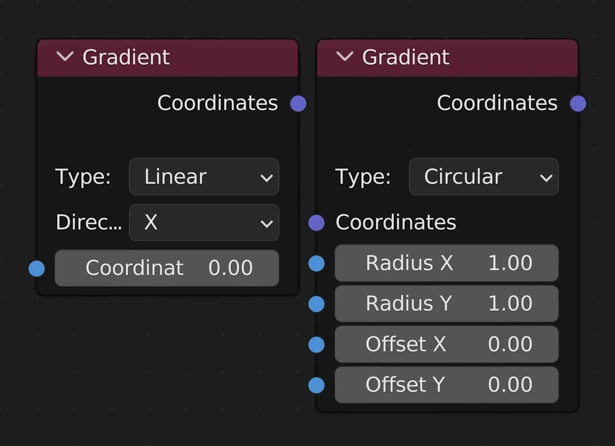
Returns a gradient of selected type from 0-1.
Type
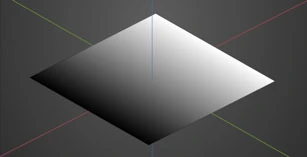
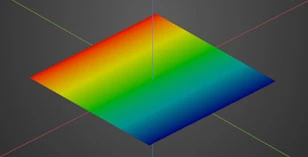
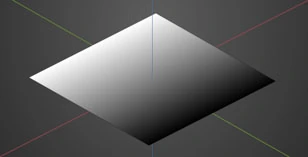
Linear: Create a gradient from 0 to 1 of the given axis (X or Y)
Direction:
- X: Gradate along the X axis
- Y: Gradate along the Y axis
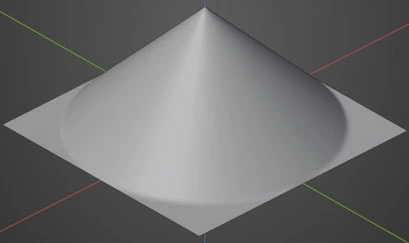
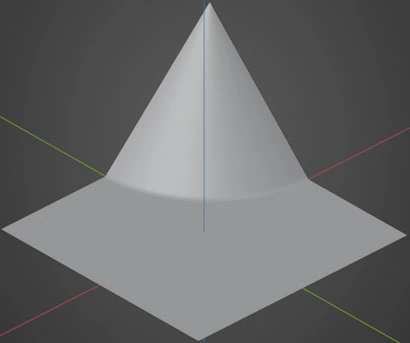
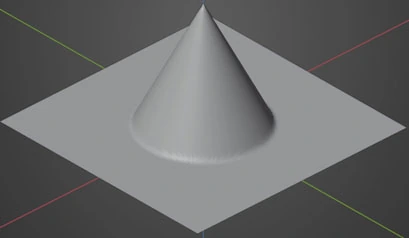
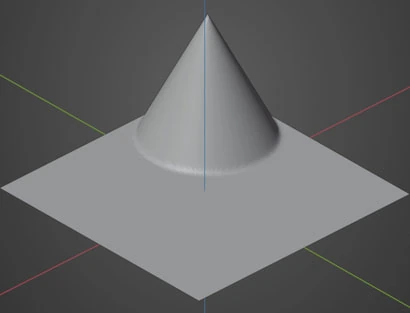
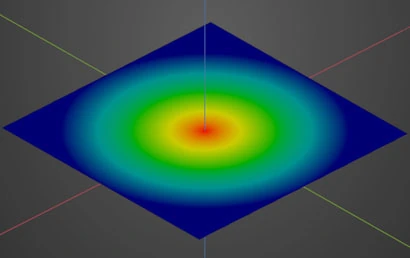
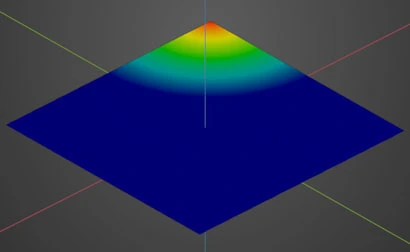
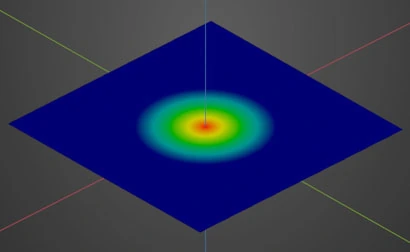
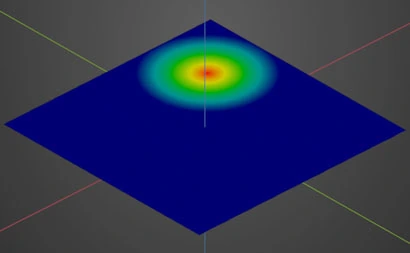
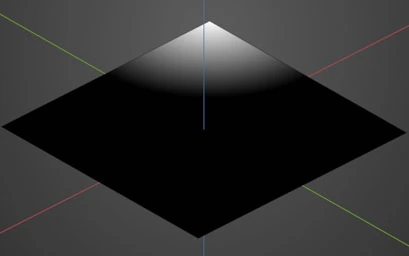
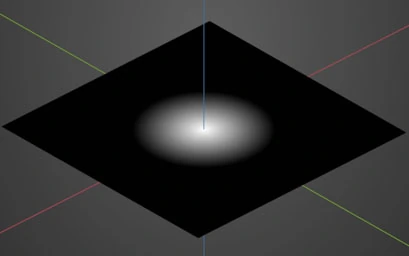
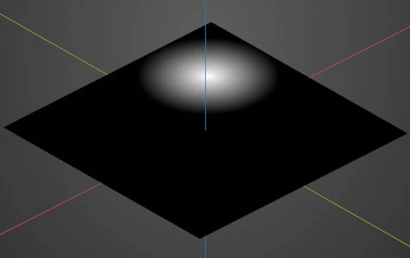
Circular
Create a gradient from 0 to 1 in a circular shape with 1 being in the middle and 0 at the edge
Radius
- X: Sets the circular radius in the X axis
- Y: Sets the circular radius in the Y axis
Offset
- X: Move the center of the gradient in the X axis
- Y: Move the center of the gradient in the Y axis
Coordinates
Connect the output of the nodes you’d like to use for creating a mask here
Examples
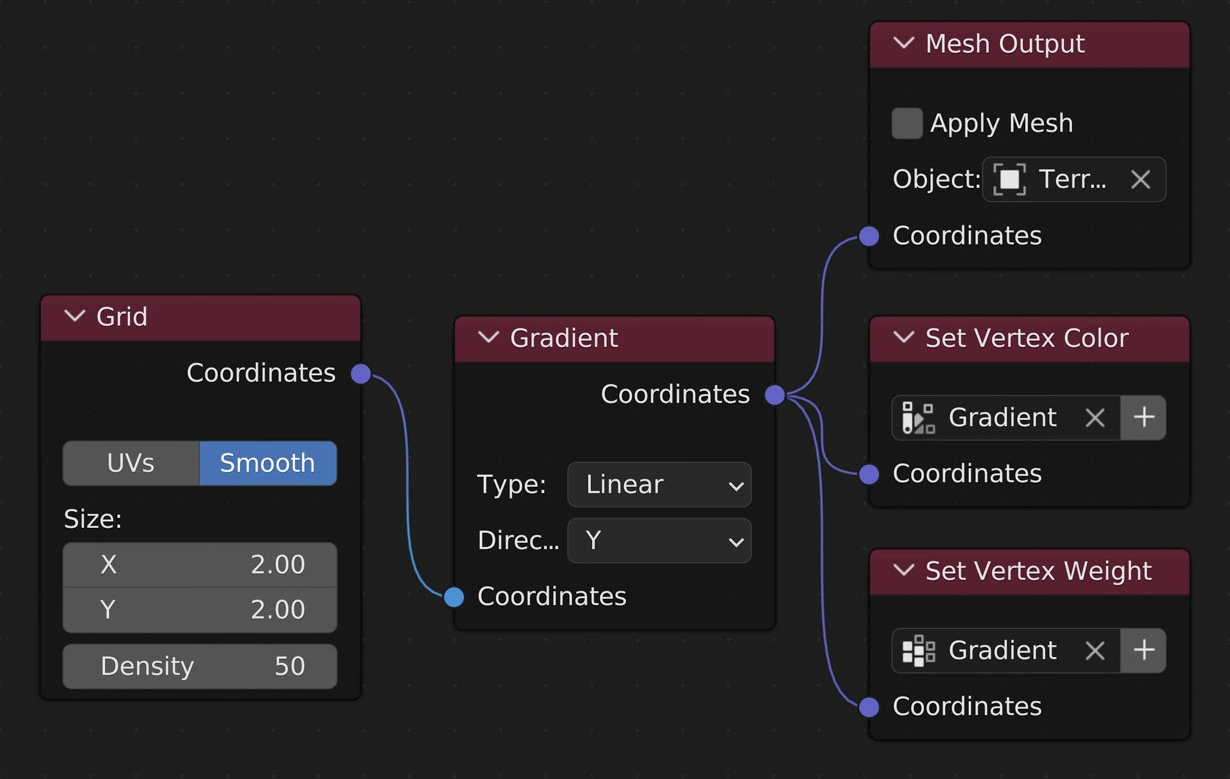
Example Node Layout
Linear
X Axis
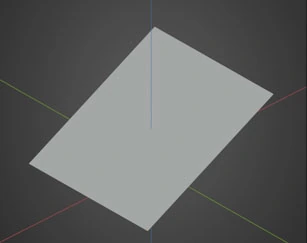
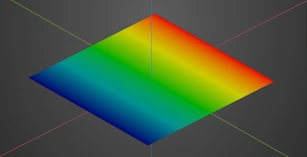
| Geometry | Weights | Linear |
|---|---|---|
 |
 |
 |
Y Axis
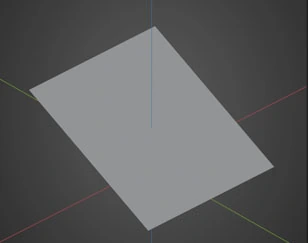
| Geometry | Weights | Linear |
|---|---|---|
 |
 |
 |
Circular
Geometry
| Radius 1x1, Offset 0x0 | Radius 1x1, Offset 1x1 | Radius 0.5x0.5, Offset 0x0 | Radius 0.5x0.5, Offset 1x1 |
|---|---|---|---|
 |
 |
 |
 |
Weights
| Radius 1x1, Offset 0x0 | Radius 1x1, Offset 1x1 | Radius 0.5x0.5, Offset 0x0 | Radius 0.5x0.5, Offset 1x1 |
|---|---|---|---|
 |
 |
 |
 |
Vertex Colours
| Radius 1x1, Offset 0x0 | Radius 1x1, Offset 1x1 | Radius 0.5x0.5, Offset 0x0 | Radius 0.5x0.5, Offset 1x1 |
|---|---|---|---|
 |
 |
 |
 |
Interpolate
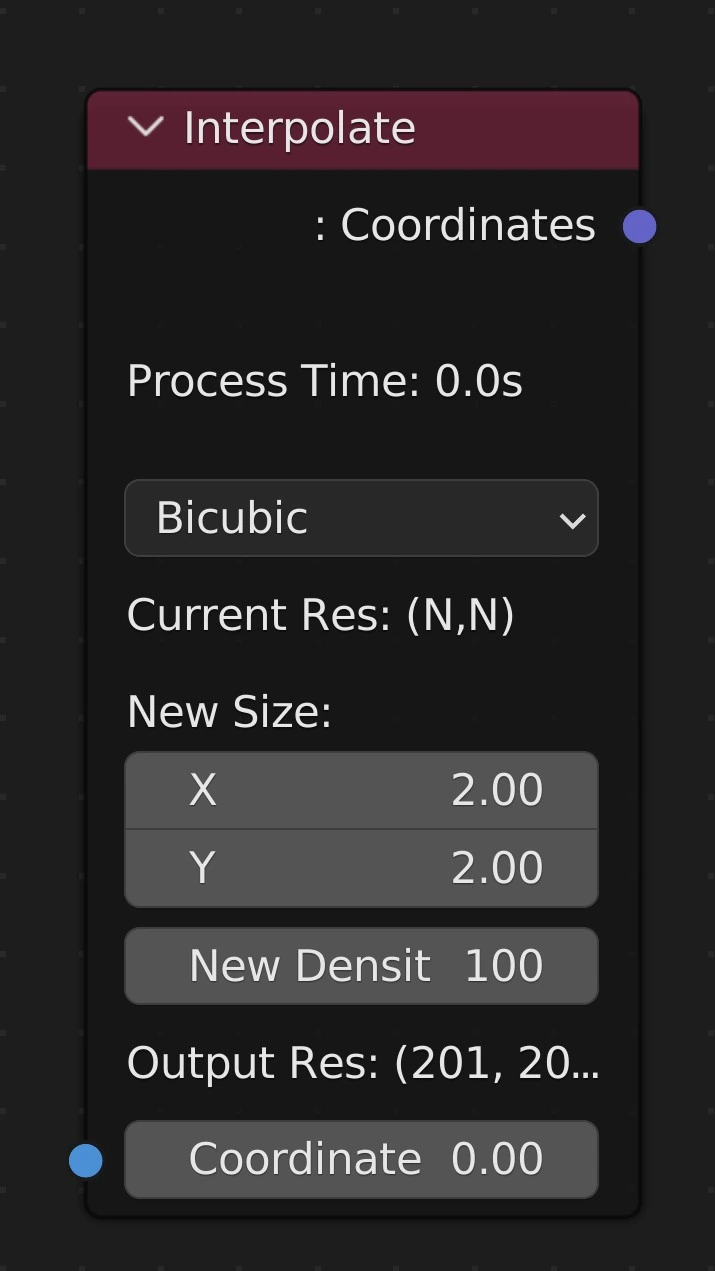
Change the size and density of the current changes
Interpolation Type
Nearest Neighbor
- Align vertices to the closest vertex. More Info
Bilinear
- Smooths from one vertex to the next in a straight line. More Info
Bicubic
- Smooths from one vertex to the next in a smooth curve shape. More Info
New Size
- The number of Blender Units in the X and Y axes
New Density
- The number of faces per Blender Unit
Interpolation Types:
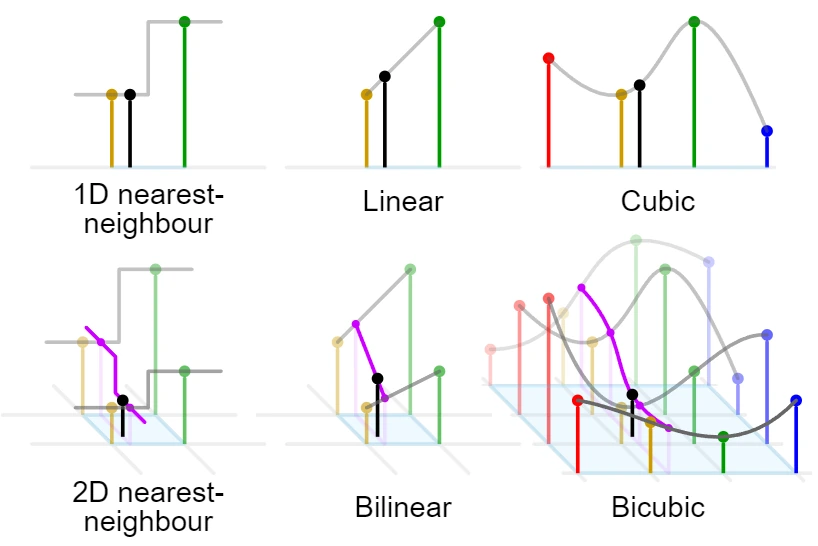
Wiki Image: Comparison of 1D and 2D Interpolation

Use:
Using the Hydraulic Erosion node with a lower resolution mesh can give more realistic results, such as more large erosion grooves. Using the Interpolate node afterwards can then provide greater detail for other nodes

Interpolation Example
Map Range
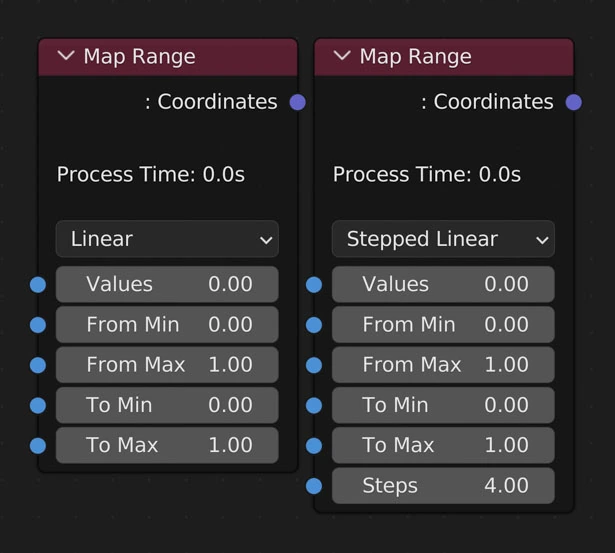
Linearly remap Value.
Value
Link values you’d like to affect here
Interpolation Type
- Linear
- Stepped Linear
- Smooth Step
- Smoother Step
From Min
All values less than and equal to this value will be remapped to To Min
From Max
All values greater than and equal to this value will be remapped to To Max
To Min
The smallest value you want to export
To Max
The largest value you want to export
Examples
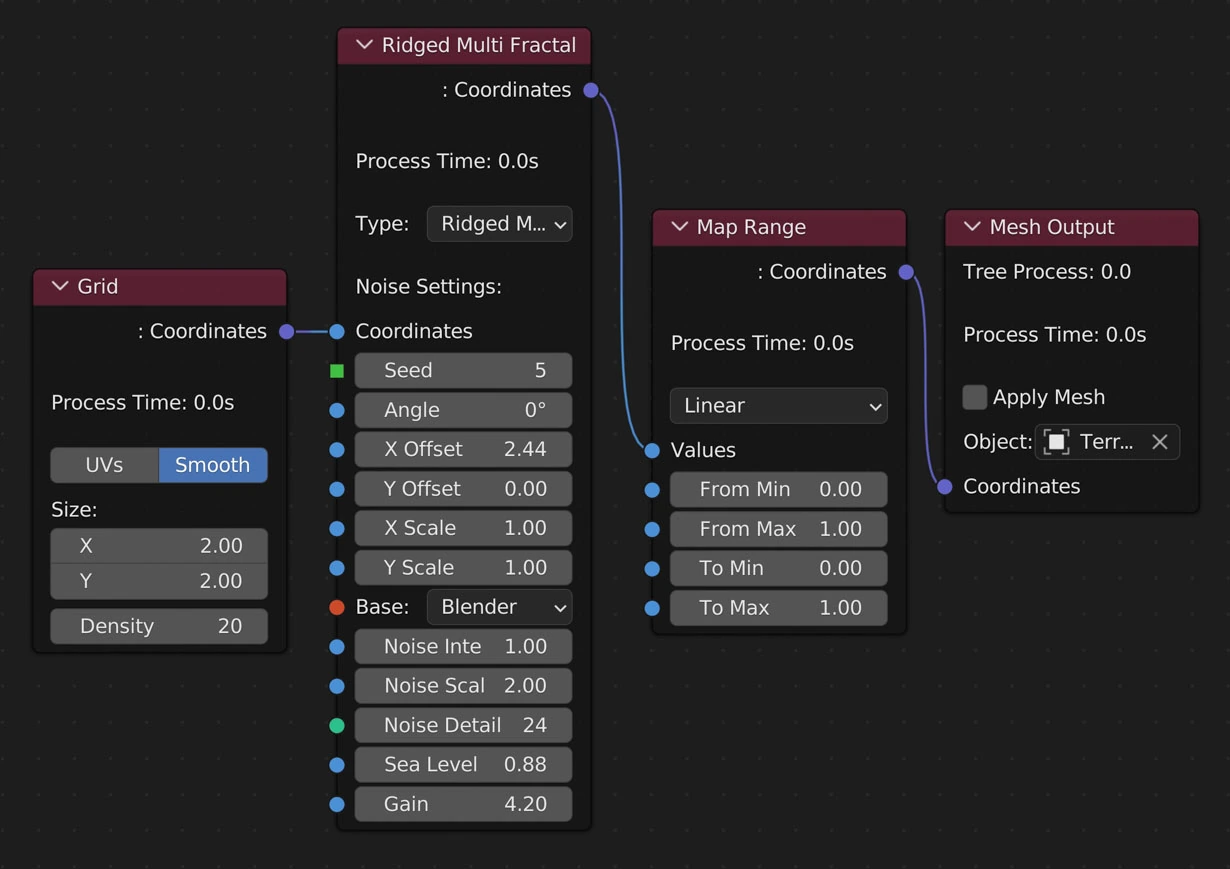
Node Layout
From Min: 0, From Max: 1, To Min: 0, To Max: 1
From Min: 0, From Max: 1, To Min: -0.1, To Max: 0.1
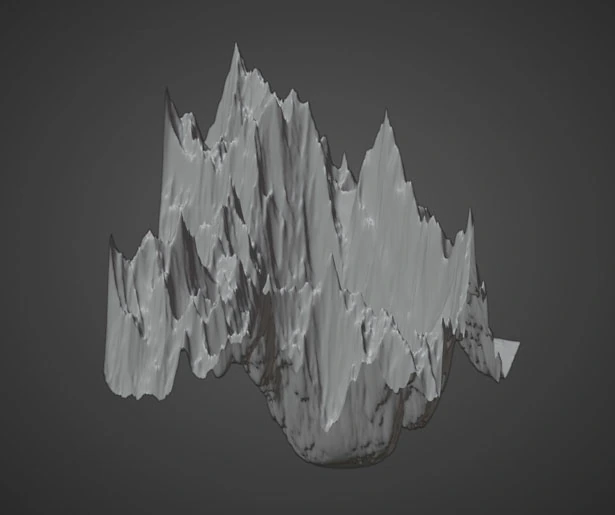
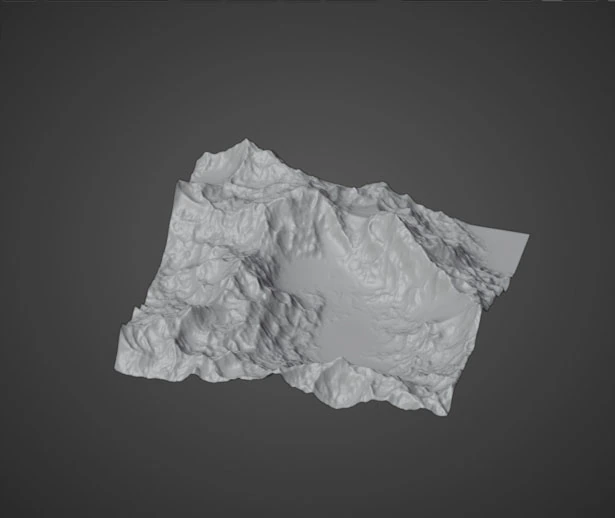
Remap 0-1
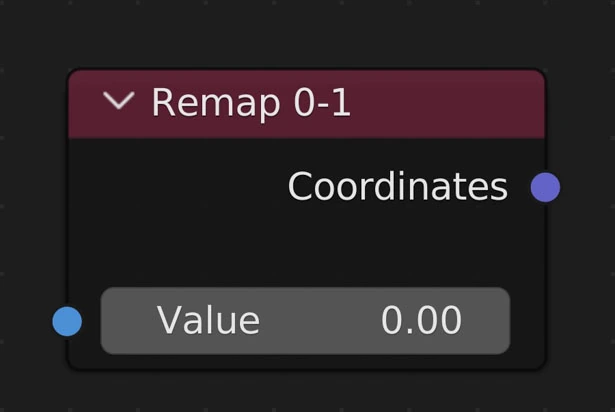
Remaps all values to be between 0 and 1 without clamping.
Useful for making Vertex Color and Weight maps
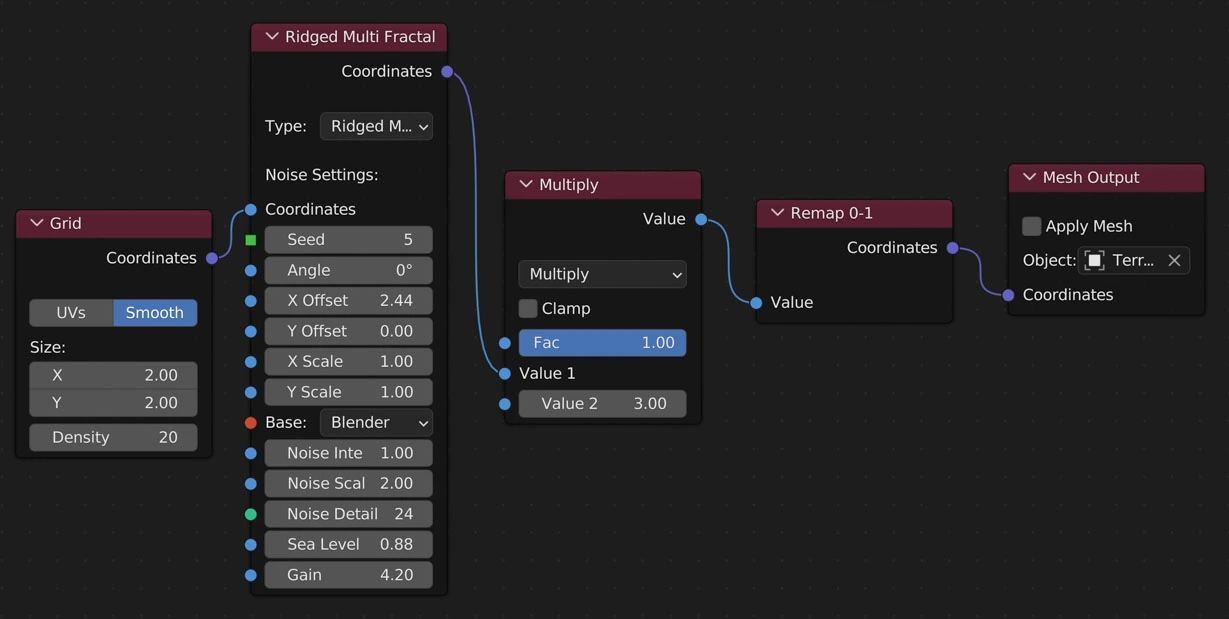
Examples
| Node Layout | Base Geometry without Remap 0-1 | Using remap 0-1 |
|---|---|---|
 |
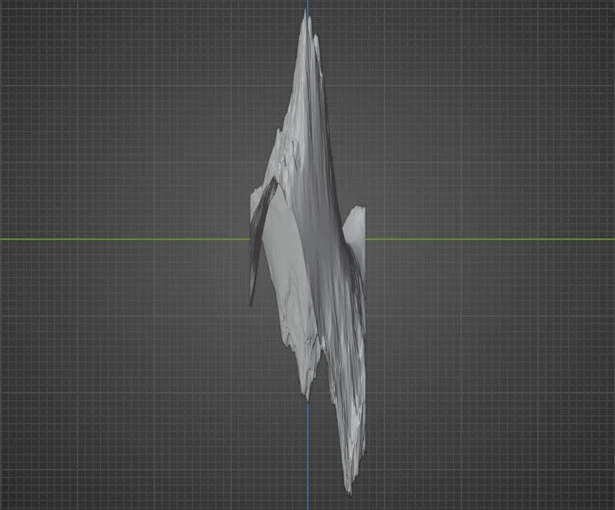 |
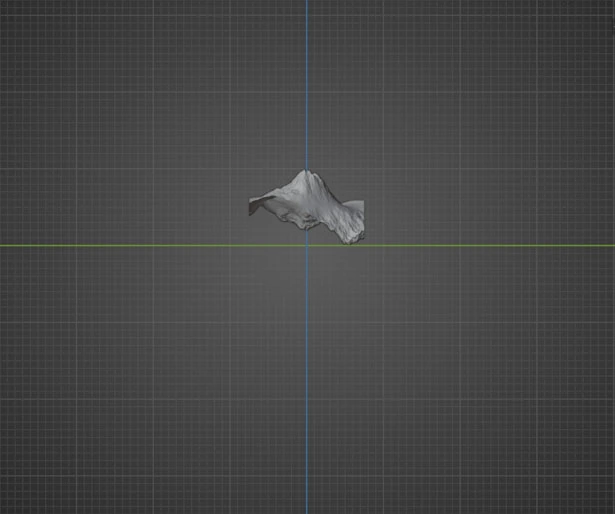 |
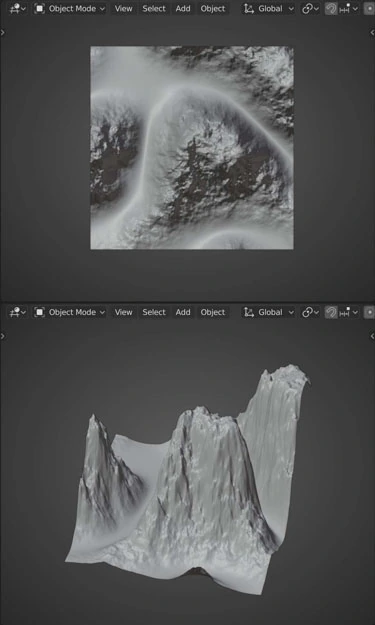
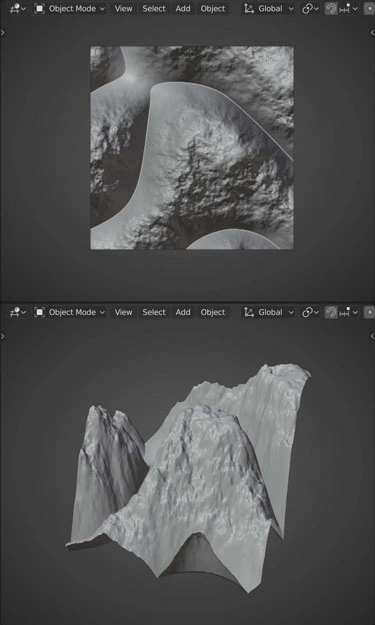
Smooth Step
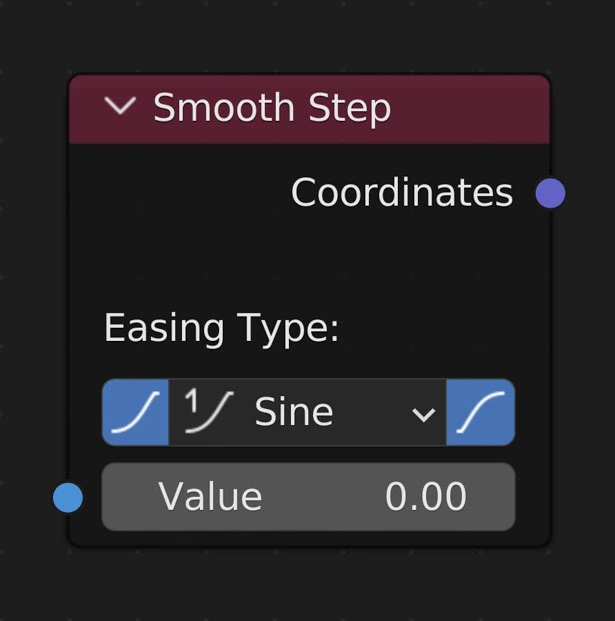
Remaps Value to a given curve
Ease In
Ease in with the given curve
Ease Out
Ease out with the given curve
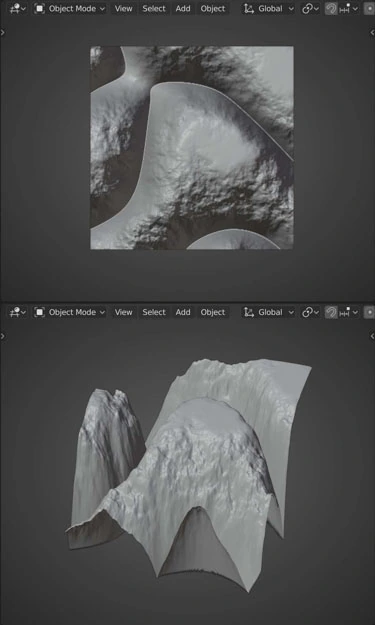
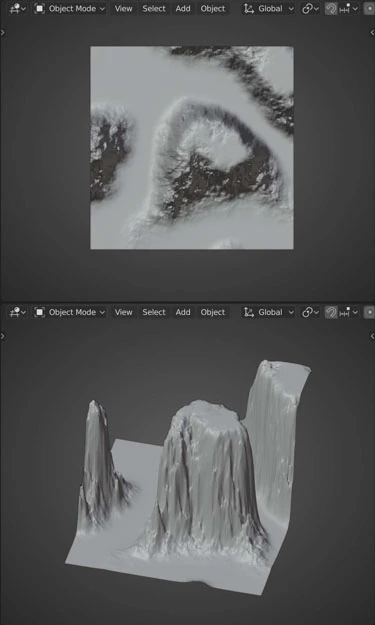
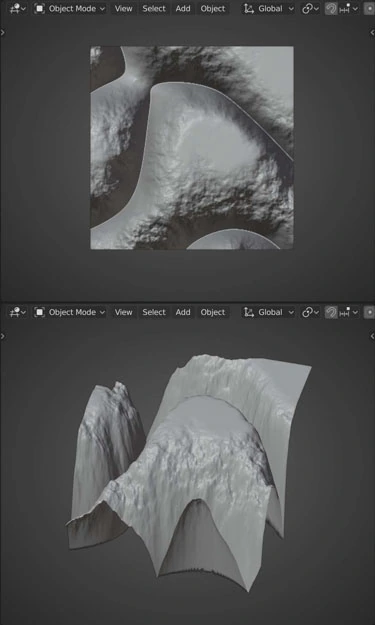
Easing Function
Sine
Ease using the sine formula.
Quadratic
Ease using a quadratic curve.
Cubic
Ease using a cubic curve.
Quartic
Ease using a quartic curve.
Quintic
Ease using a quintic curve.
Exponential
Ease using an exponential curve.
Circle
Ease using a circle curve.
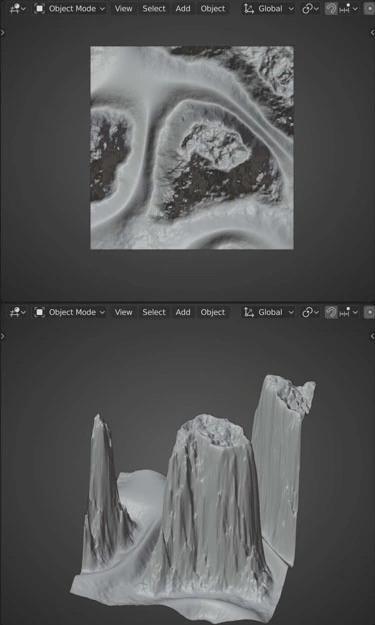
Back
Ease using a back curve (pushes smallest and largest values up/down a bit respectively).
Elastic
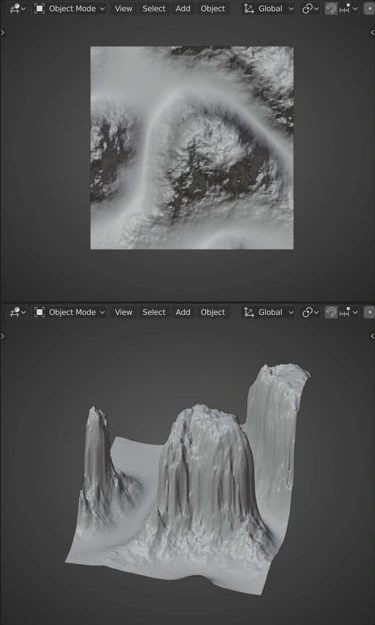
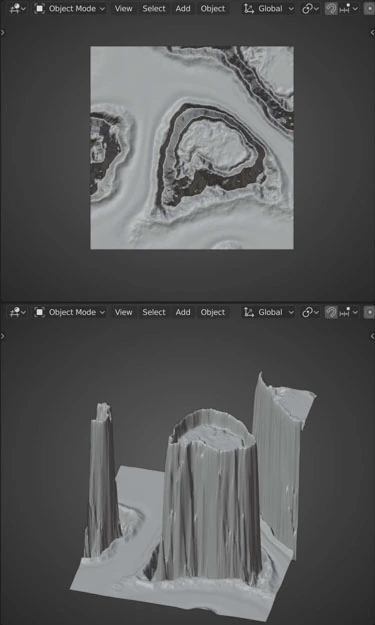
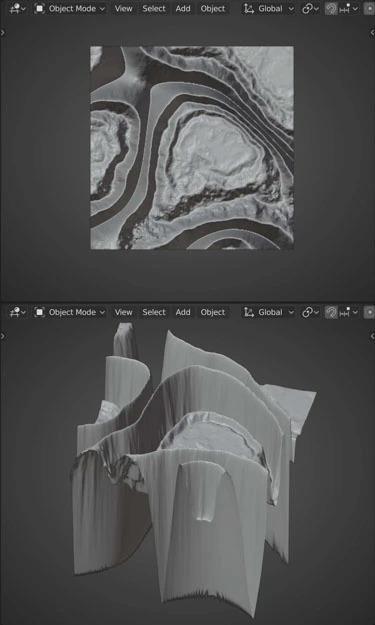
Ease using an elastic curve (similar to Back but multiple times).
Bounce
Ease using a bounce curve (a curve one might use to animate a bouncing ball).
Example
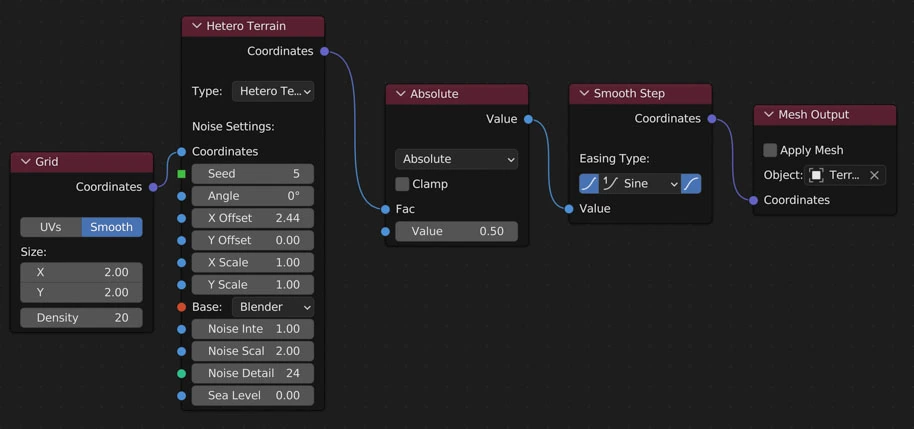
Node Layout
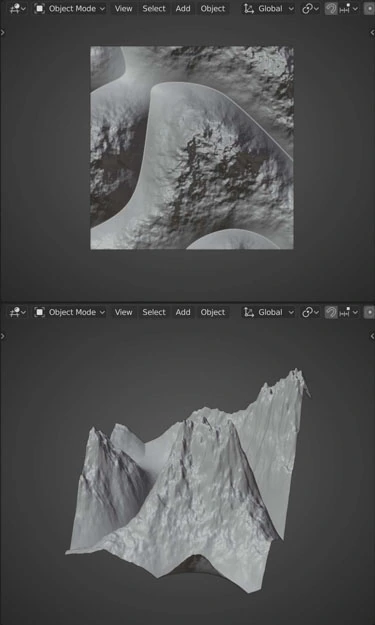
Base Geometry without Smooth Step
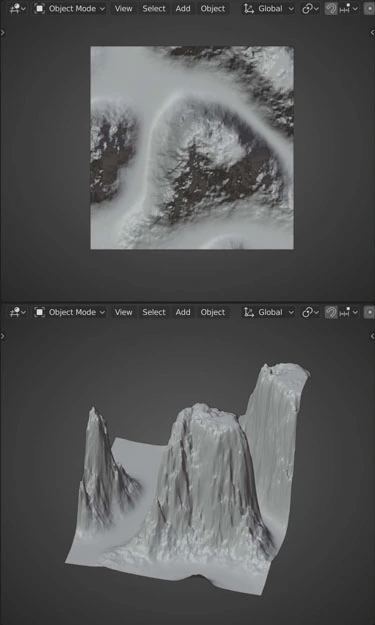
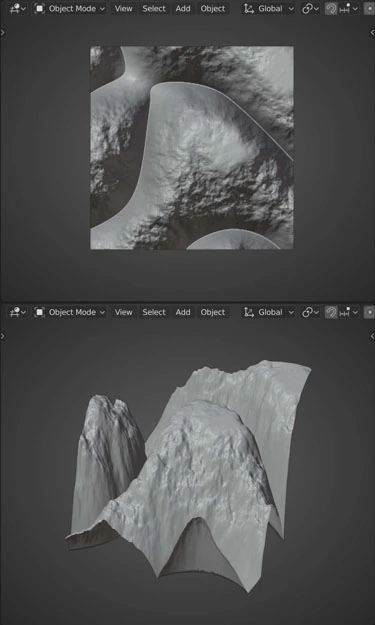
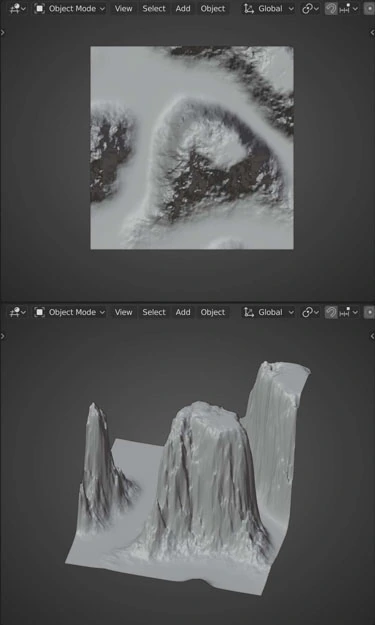
| Ease Function | Ease In | Ease In/Out | Ease Out |
|---|---|---|---|
| Sine | 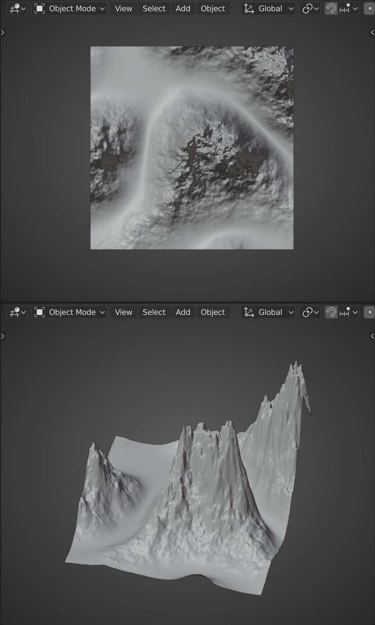 |
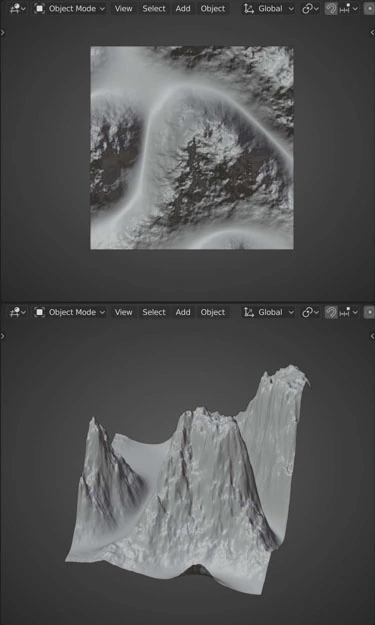 |
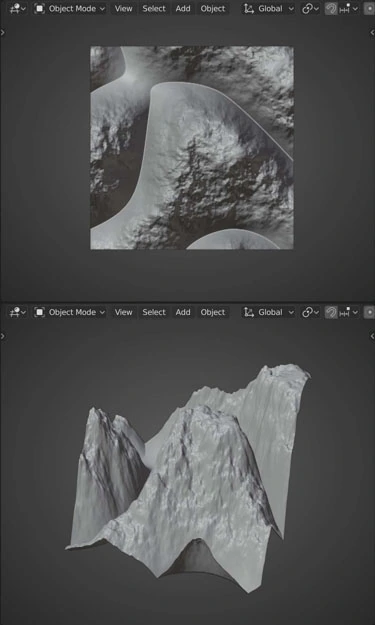 |
| Quadratic | 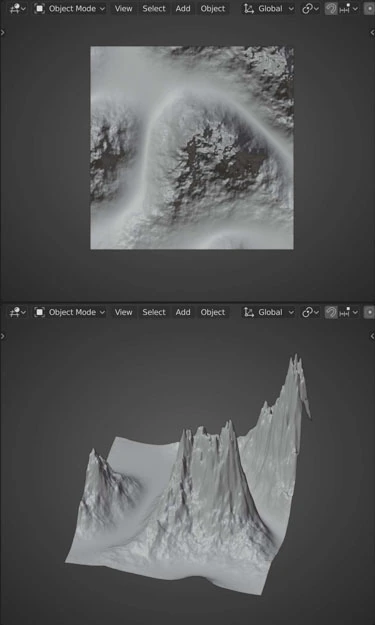 |
 |
 |
| Cubic | 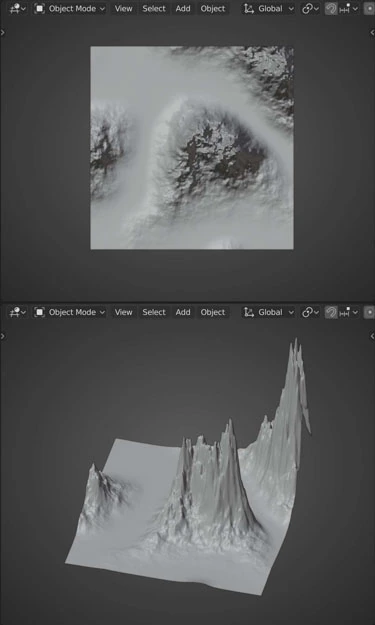 |
 |
 |
| Quartic | 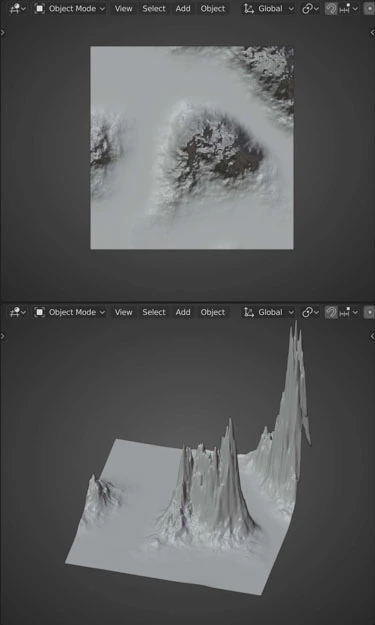 |
 |
 |
| Quintic | 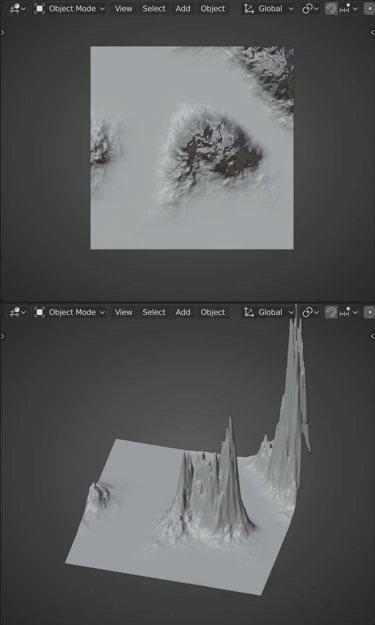 |
 |
 |
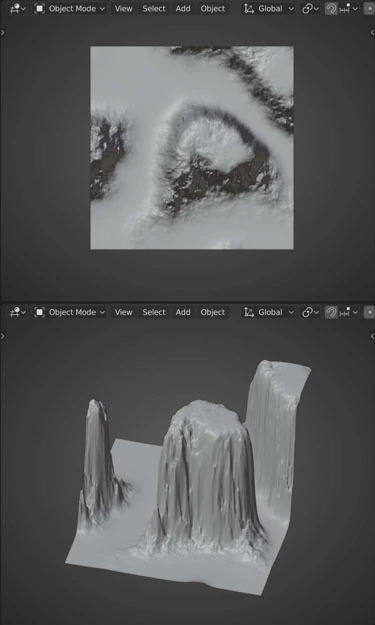
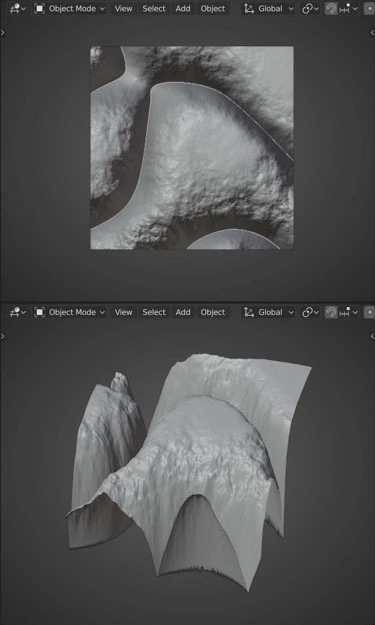
| Exponential | 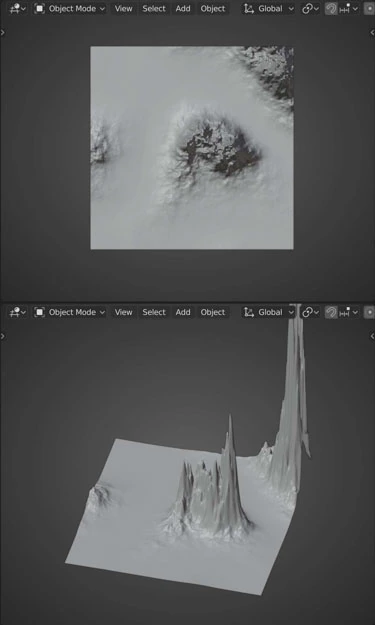 |
 |
 |
| Circle | 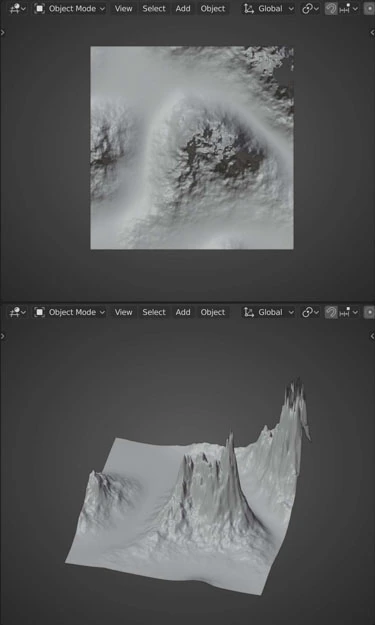 |
 |
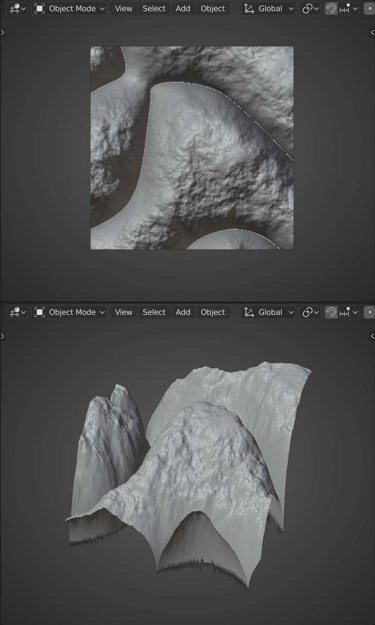 |
| Back | 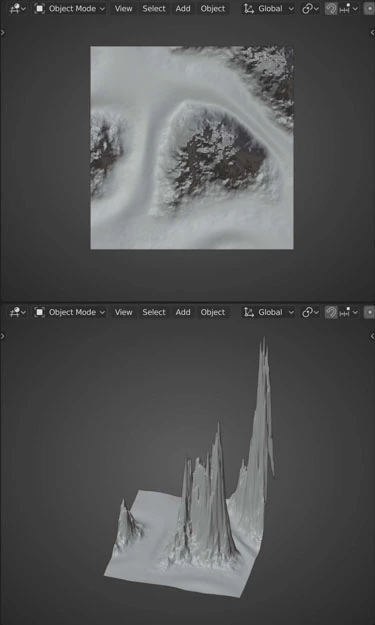 |
 |
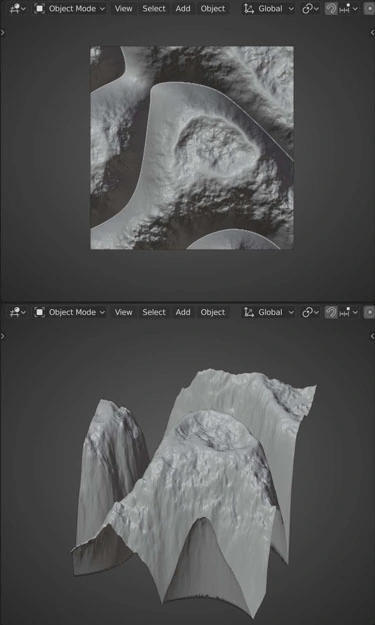 |
| Elastic | 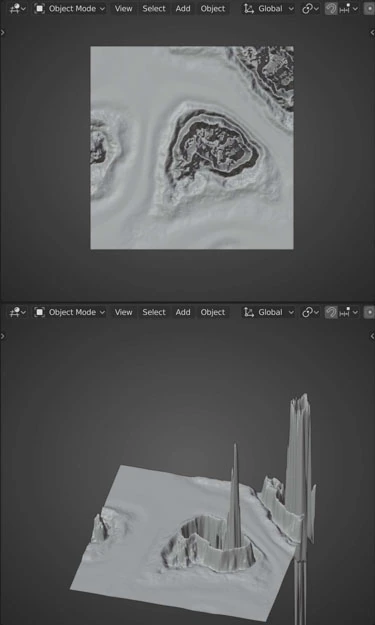 |
 |
 |
| Bounce | 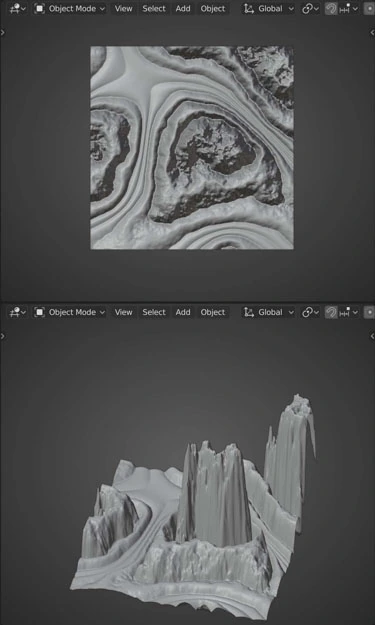 |
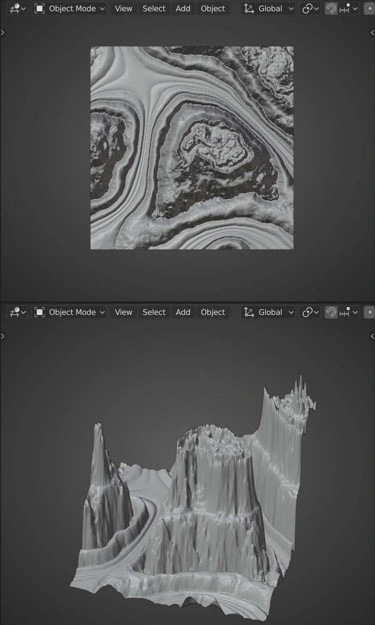 |
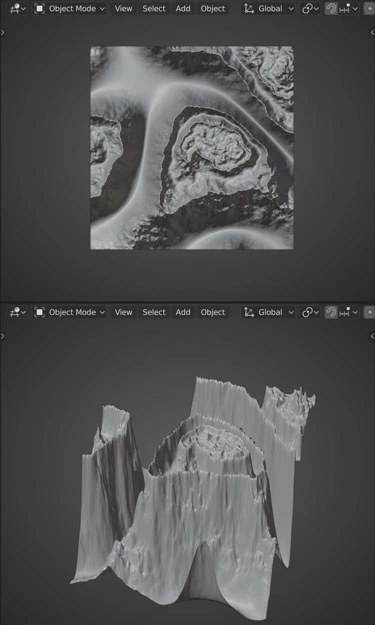 |
Camera Mask
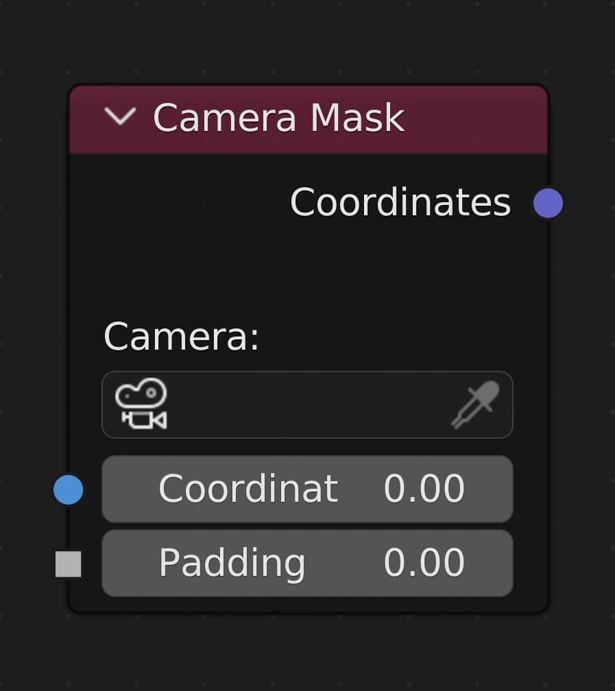
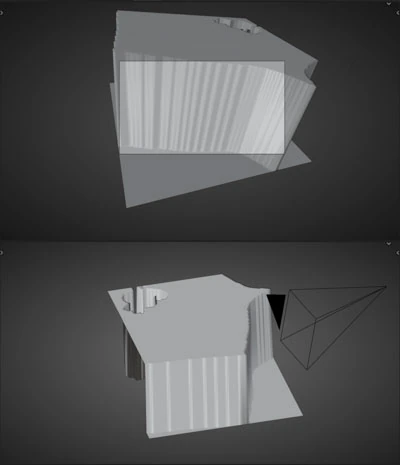
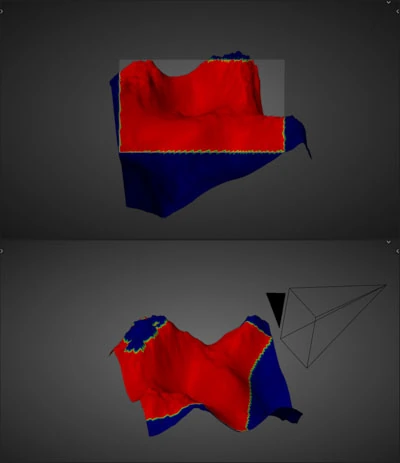
Results in a map of values either '0' or '1'. '0' means the vertex is not visible by the selected camera. '1' means the vertex is visible by the selected camera. Useful for mixing or creating vertex groups for efficient particle placement
Camera
The camera to use for visibility
Coordinates
Connect the output of the nodes you’d like to use for creating a mask here
Padding
Expand the mask beyond the camera bounds.
Examples
Result
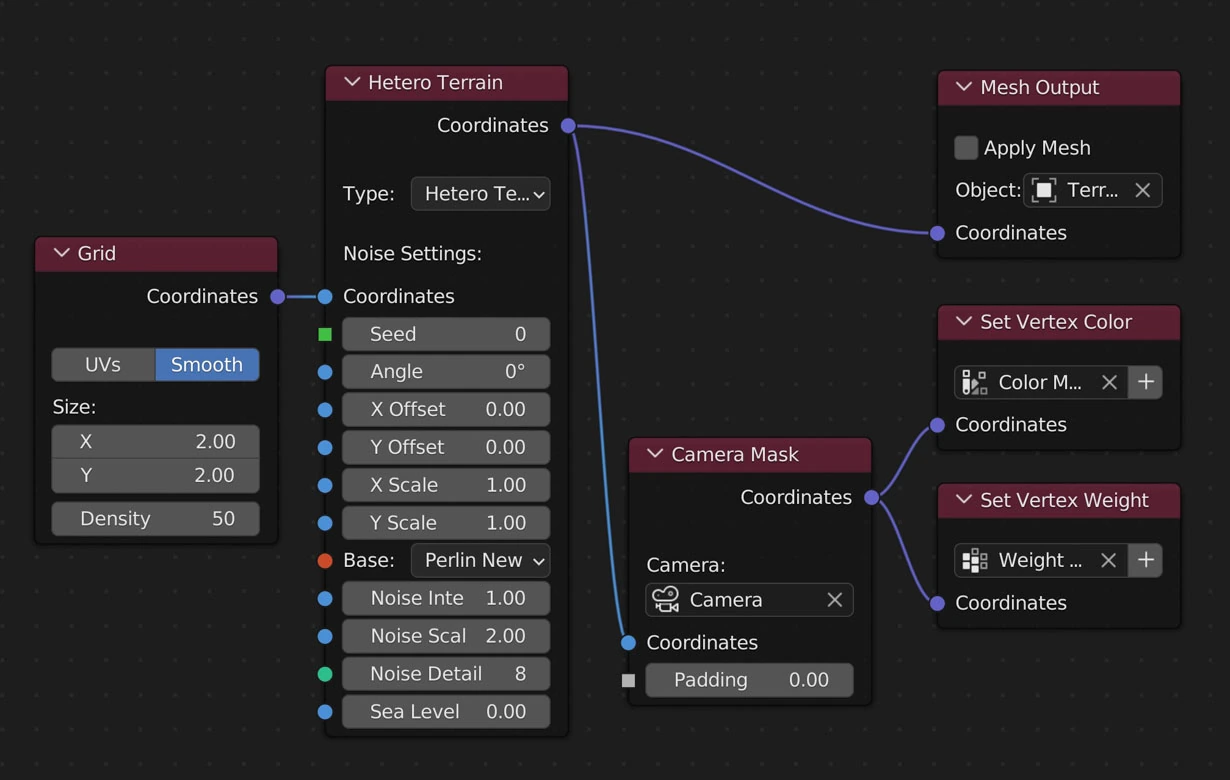
Example Node Layout
| Geometry Result | Weight Result | Color Result |
|---|---|---|
 |
 |
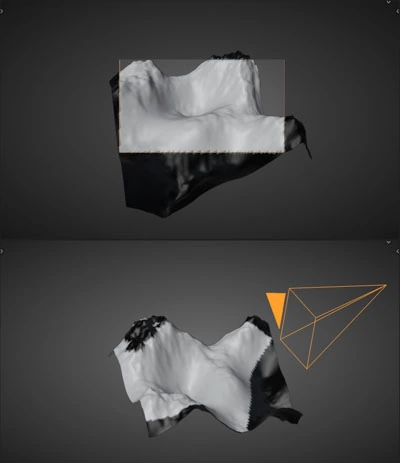 |
| Result when Camera Mask node is linked to the Displacement input of the Mesh Output node. | Result when Camera Mask node is linked to the Weights input of the Mesh Output node. | Result when Camera Mask node is linked to the Colors input of the Mesh Output node. |
Padding

Padding Example using the layout from above
Update Example
When a Camera Mask node is selected in the NodeScapes node tree and its chosen camera is moved or its lens/render dimensions change the node will update with each change

Update Example using the layout from above
Normal Mask
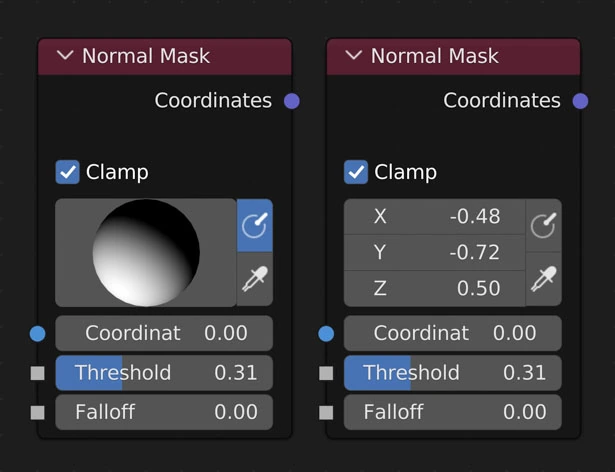
Results in a map of values from 0-infinity relative to how close each vertices' normal is to the target normal and the threshold value
Clamp
Values higher than 1 and lower than 0 are ignored and set to either 1 or 0 respectively
Target Normal
This is the large sphere in the node
Click and drag to rotate the sphere in order to choose the normal value. Default value is a normal facing directly up, usually meaning a flat surface
Show Normal Sphere
Display the target normal as a sphere to easily rotate the normal
When off the target normal is displayed as 3 float values
Normal Picker
Click a place on the object to choose the normal in that area
Coordinates
Connect the output of the nodes you’d like to use for creating a mask here
Threshold
How lenient to be when including normal values close to the targeted normal
Falloff
How far from the target normal + threshold value to fade out the mask
Example
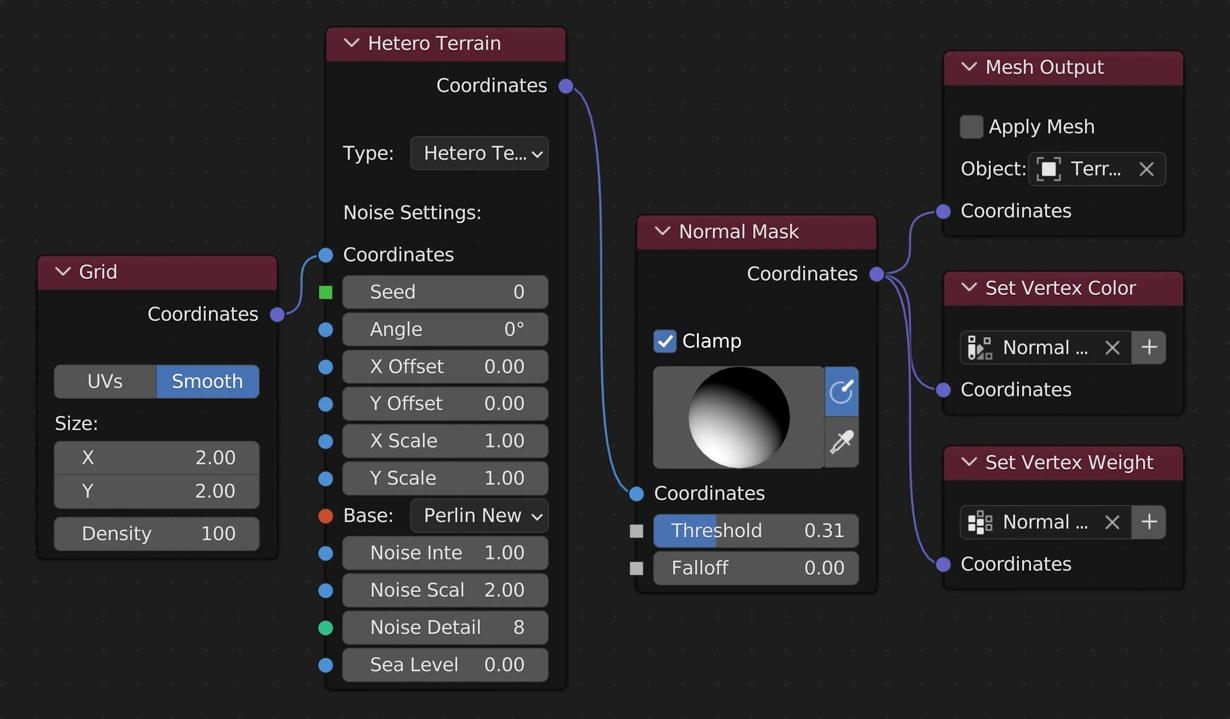
Example Geometry Result using the Normal Mask node
The following images are all using the above layout
| Base Geometry | Vertex Color Result | Vertex Weight Result | |
|---|---|---|---|
| Result | 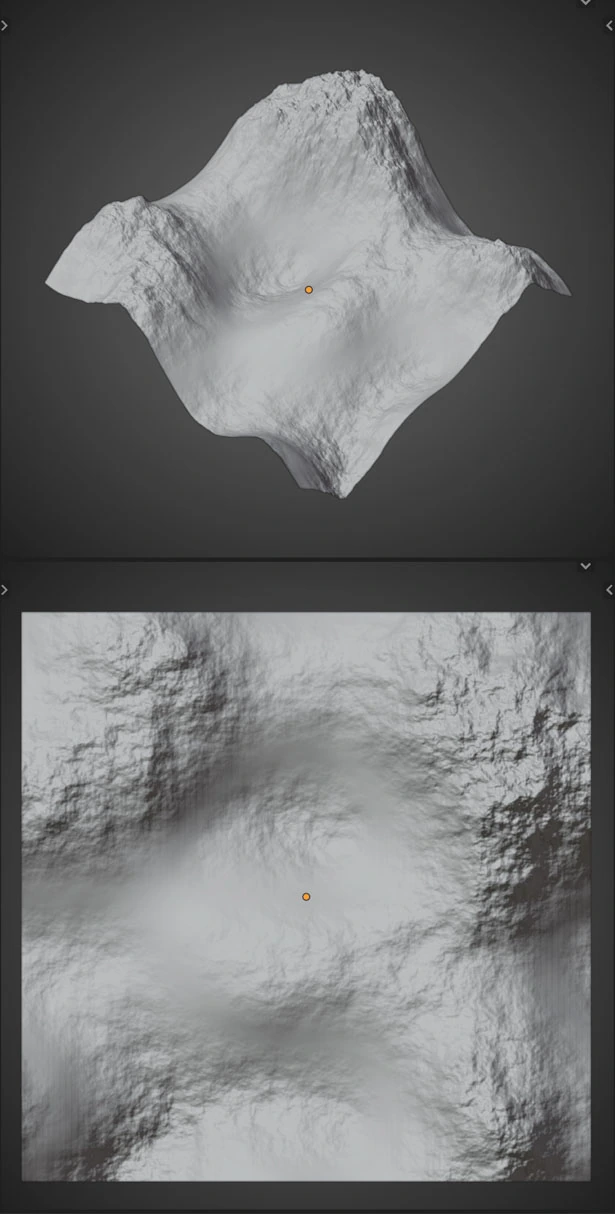 |
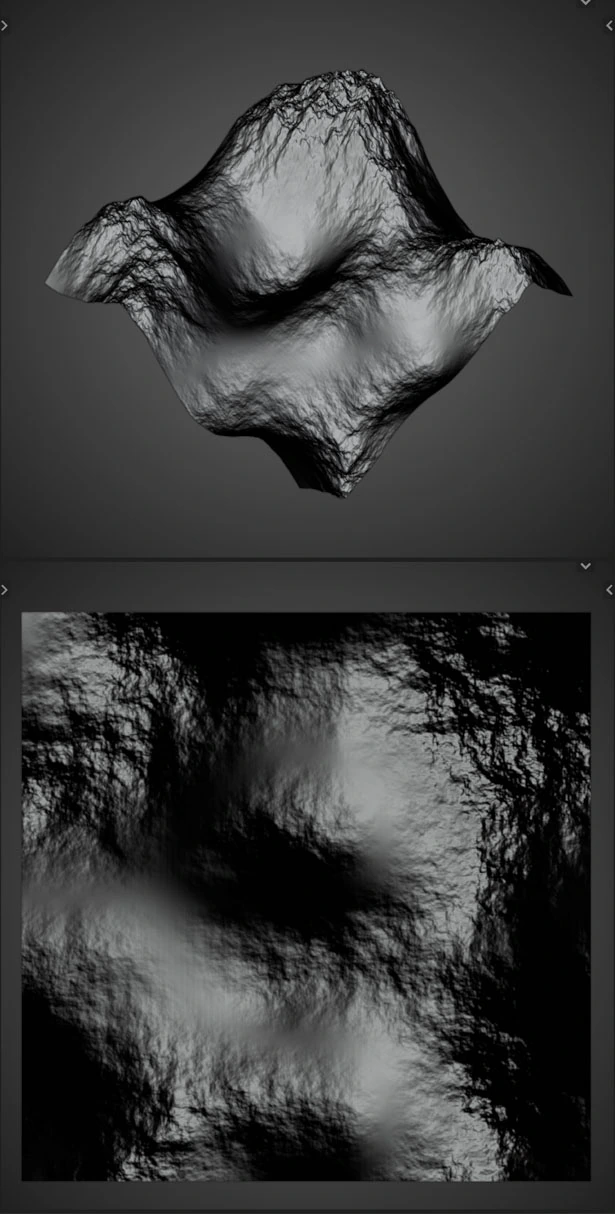 |
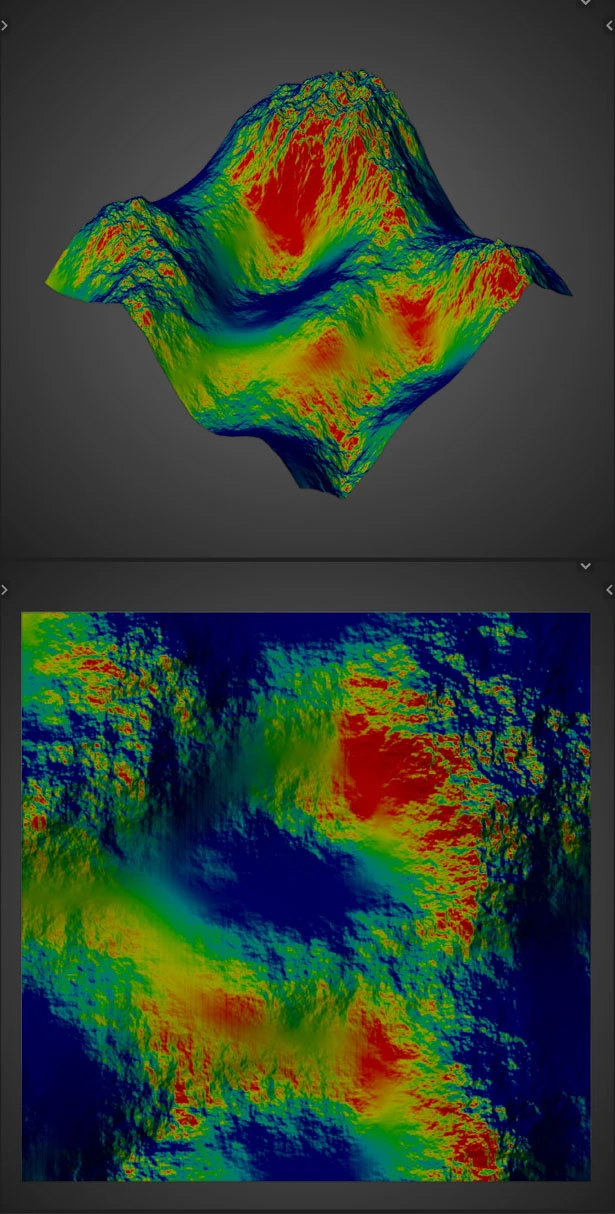 |
| Normal Mask Result as Geometry | 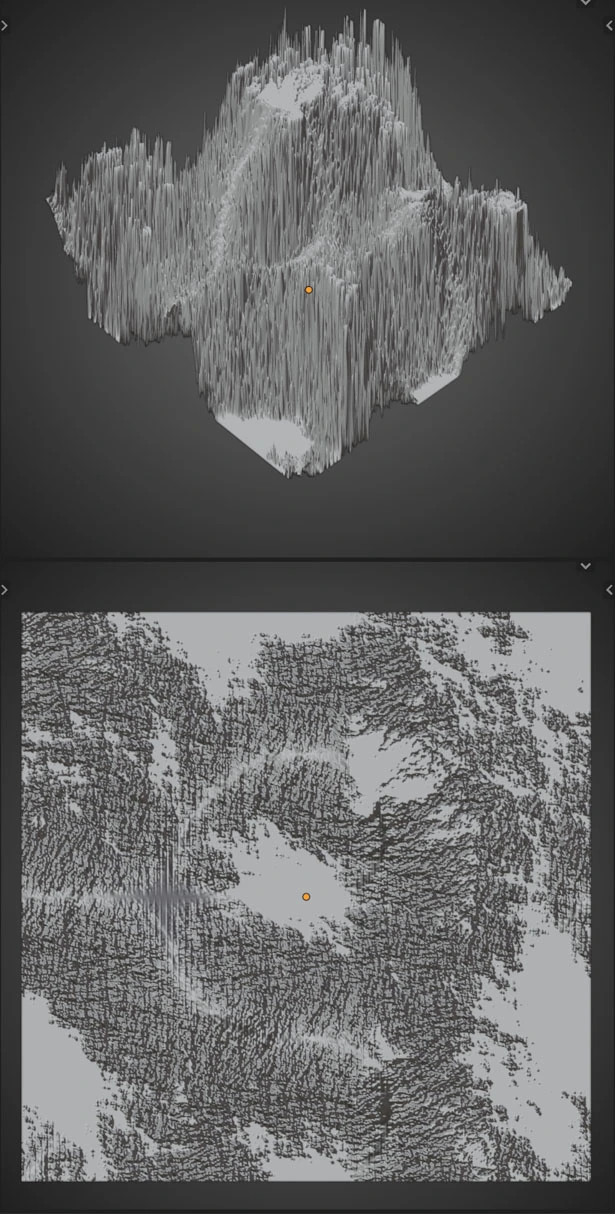 |
 |
 |
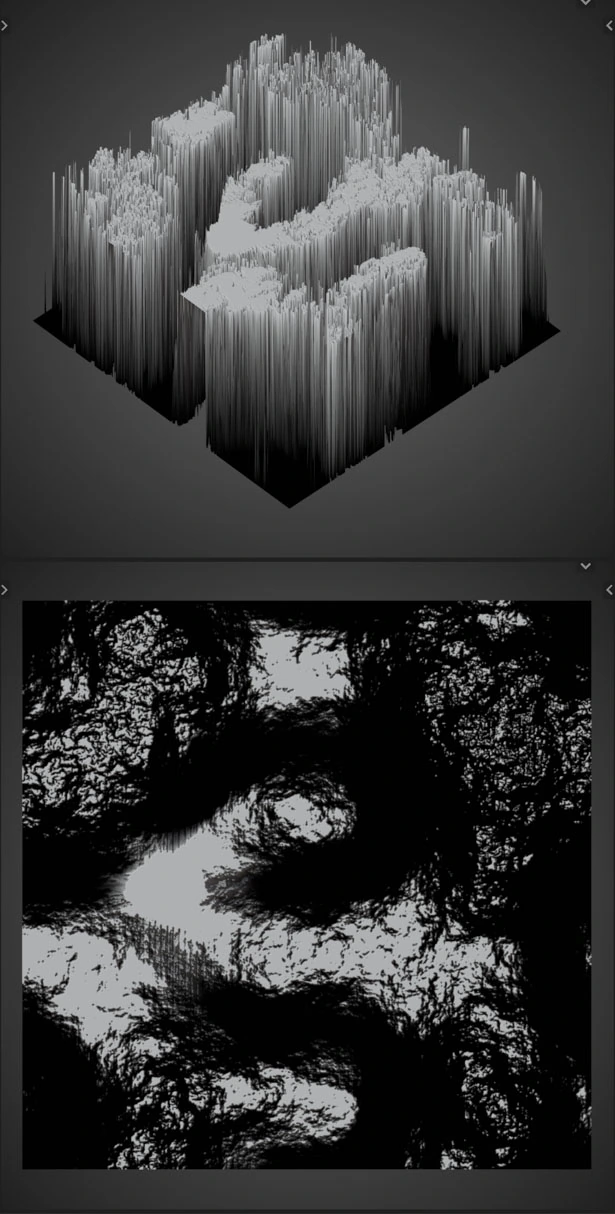
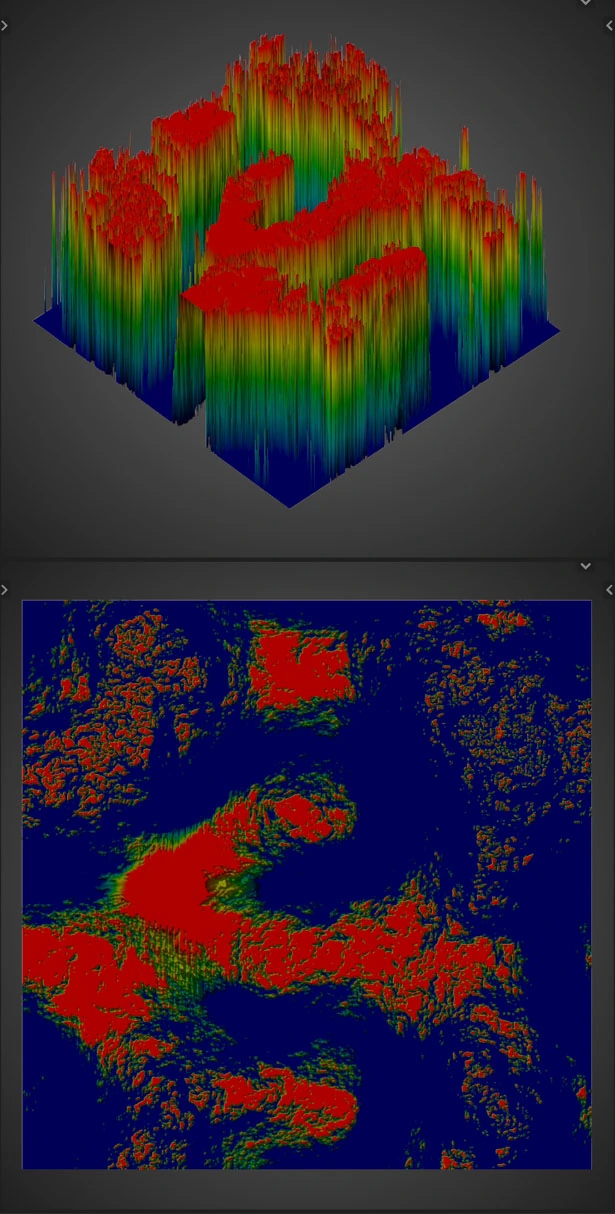
Slope Mask
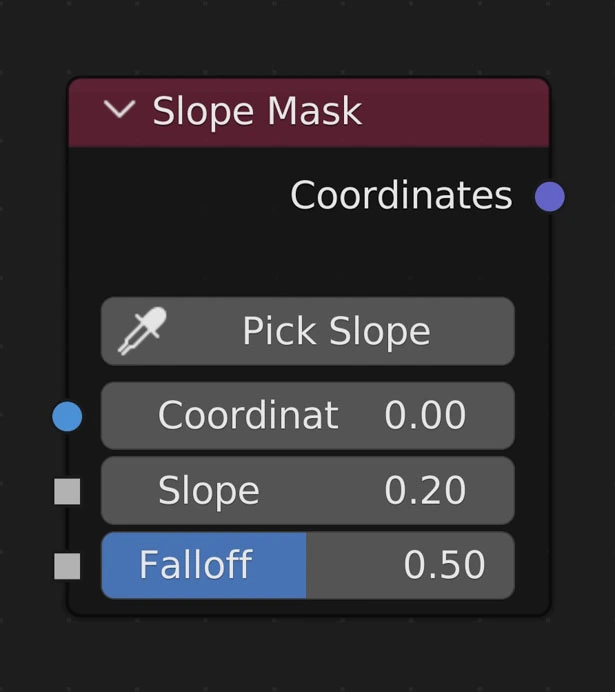
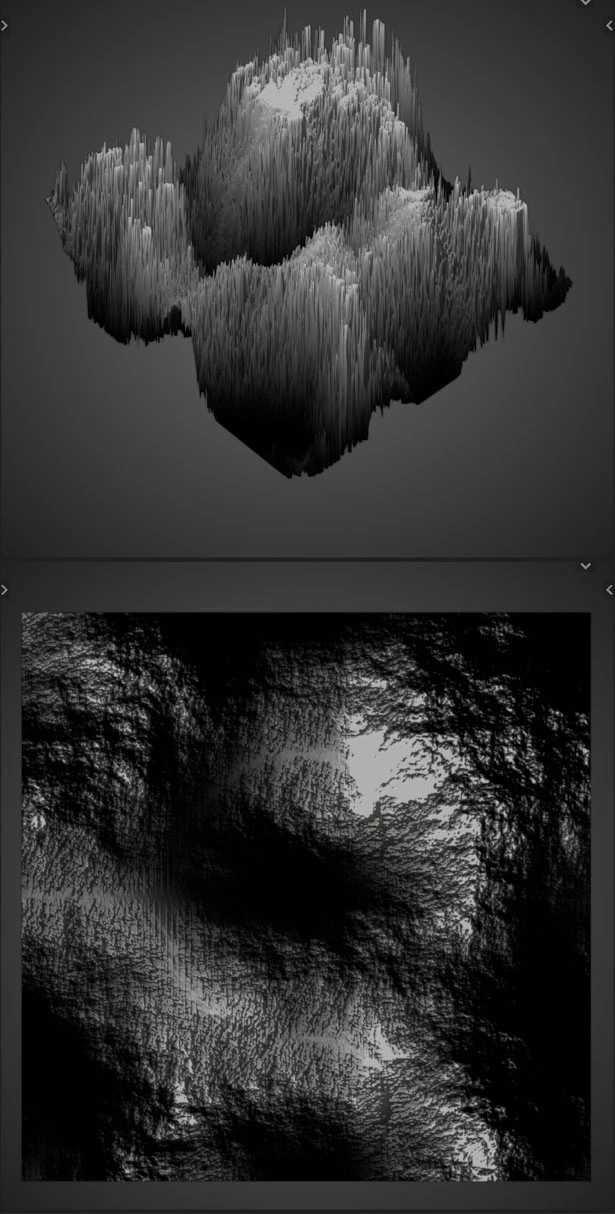
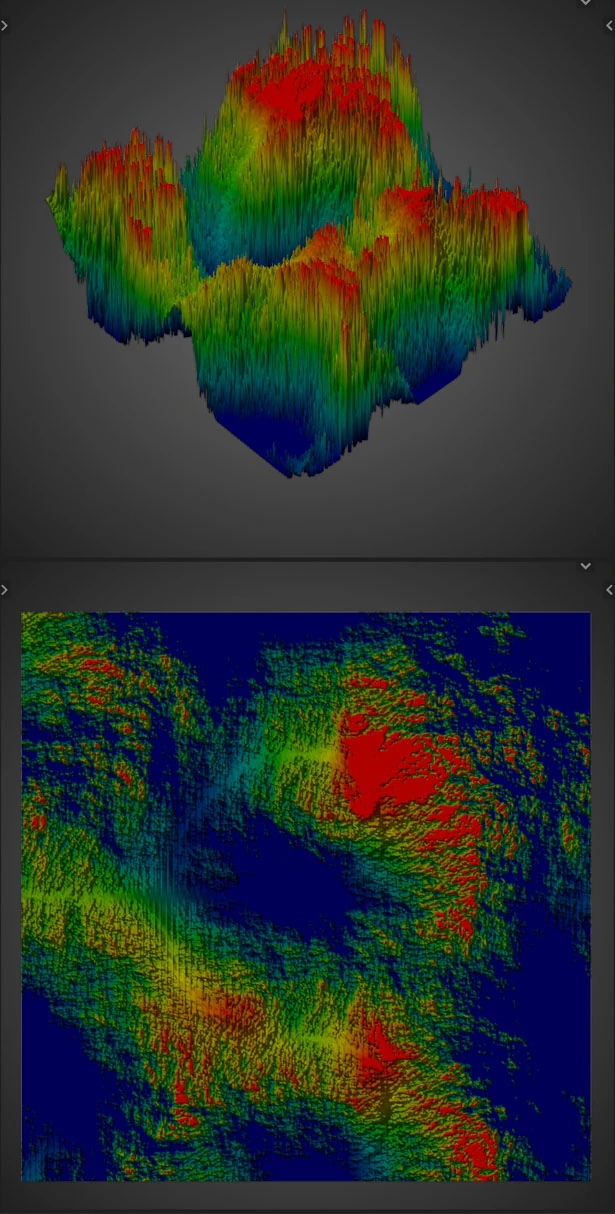
Results in a map of values from 0-infinity relative to how close each vertices' slope is to the Target Slope and the Falloff
Pick Slope
Click a place on the object to choose the slope in that area
Coordinates
Connect the output of the nodes you’d like to use for creating a mask here
Target Slope
How great of a slope to include in the map
Slope is how steep the terrain is at each vertex
Effectively this is the Normal Mask but doesn't care about direction, only slope
Falloff
How lenient to be when including slope values close to the targeted slope
Example
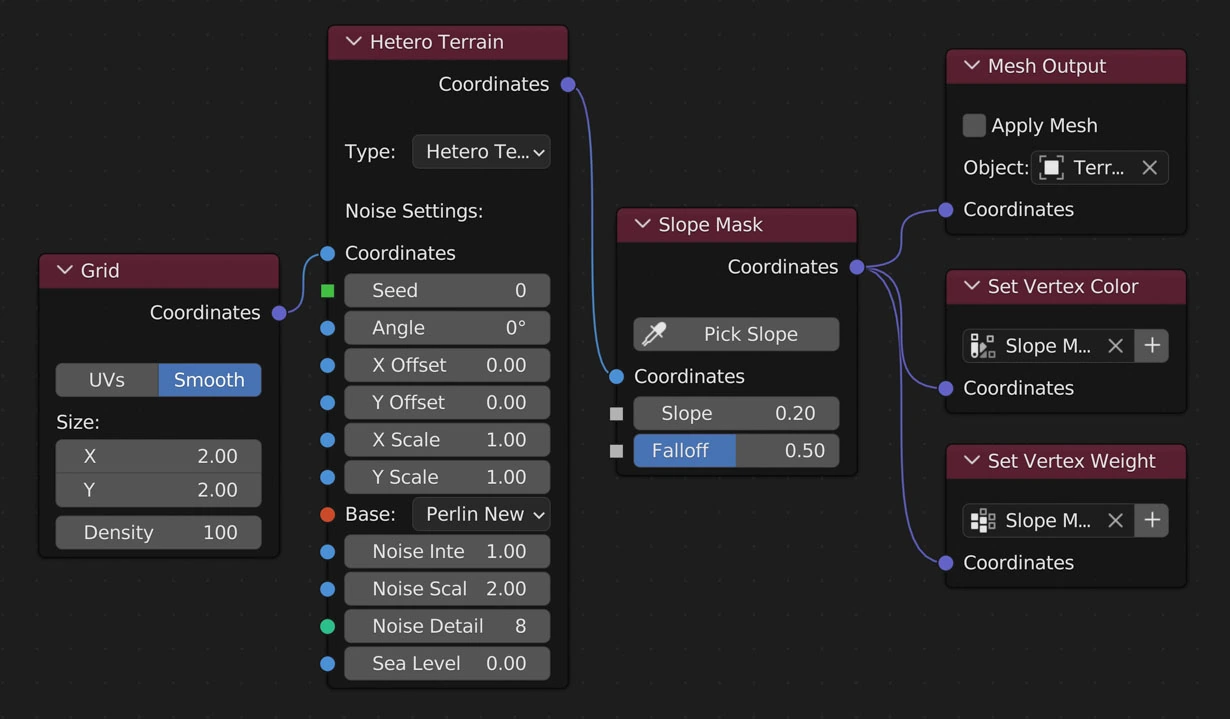
Example Node Layout
The following images are all using the above layout
| Base Geometry | Vertex Color Result | Vertex Weight Result | |
|---|---|---|---|
| Result | 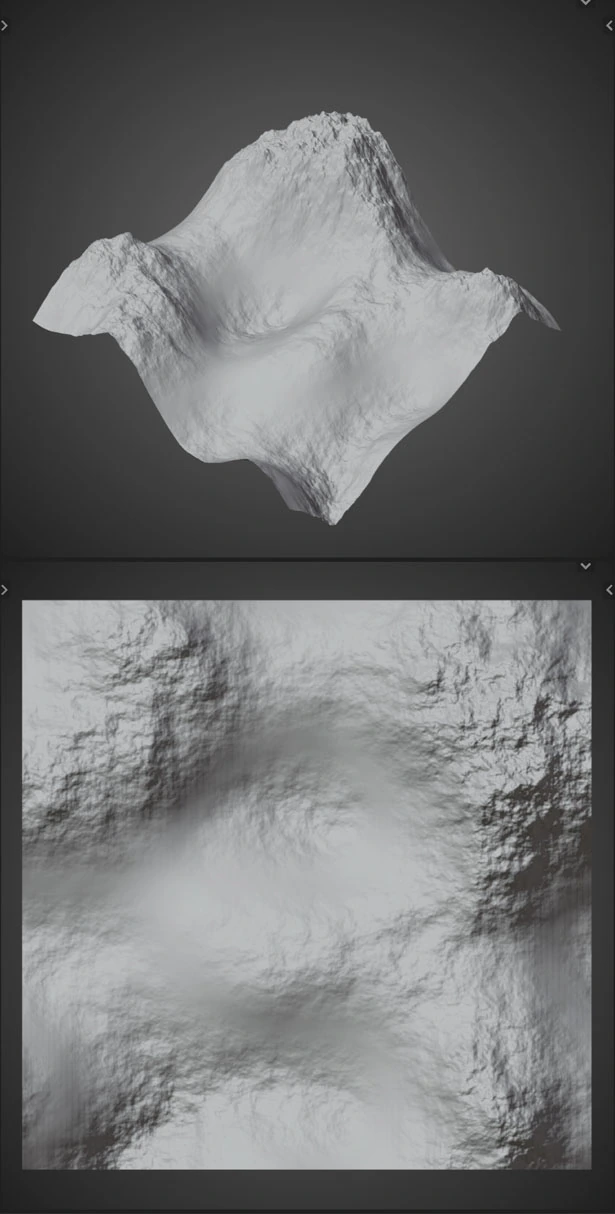 |
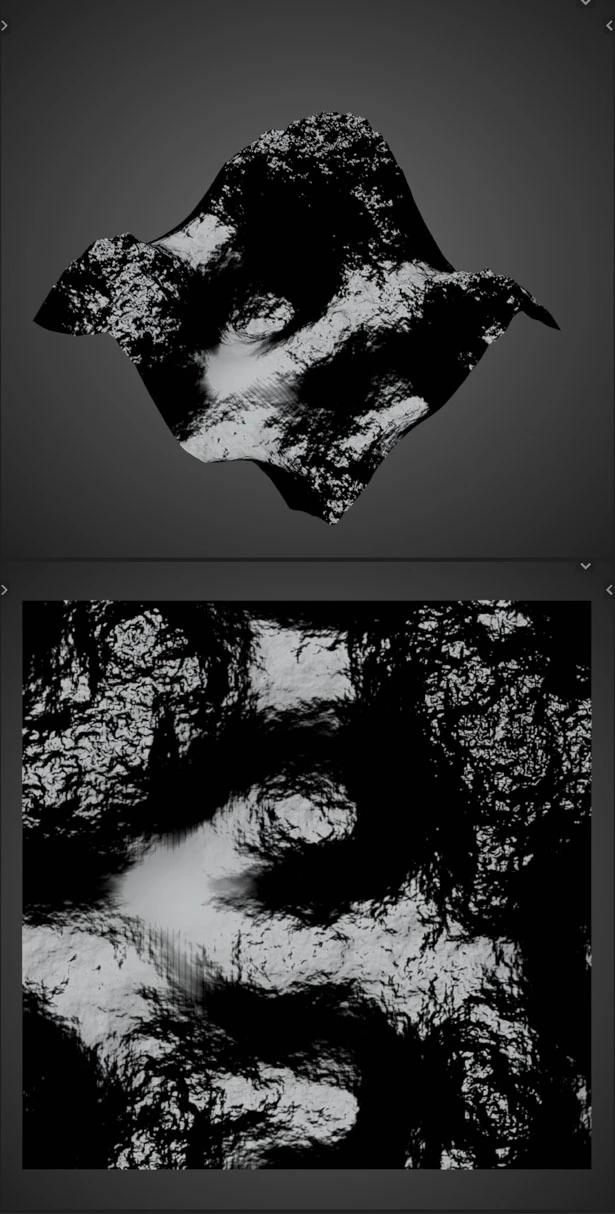 |
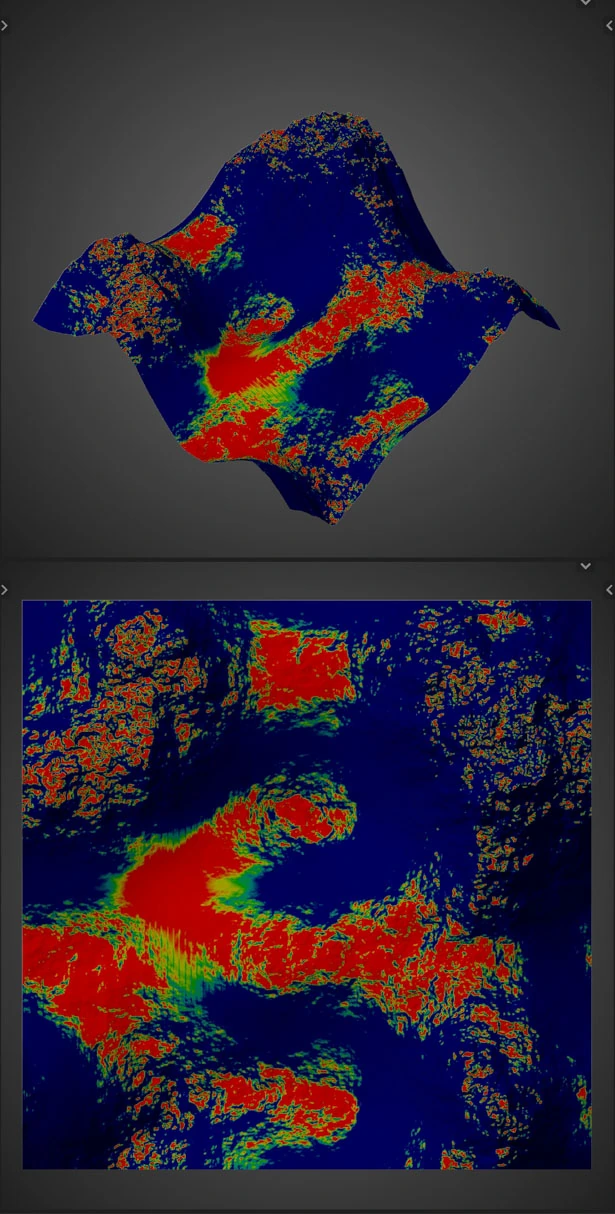 |
| Slope Mask Result as Geometry | 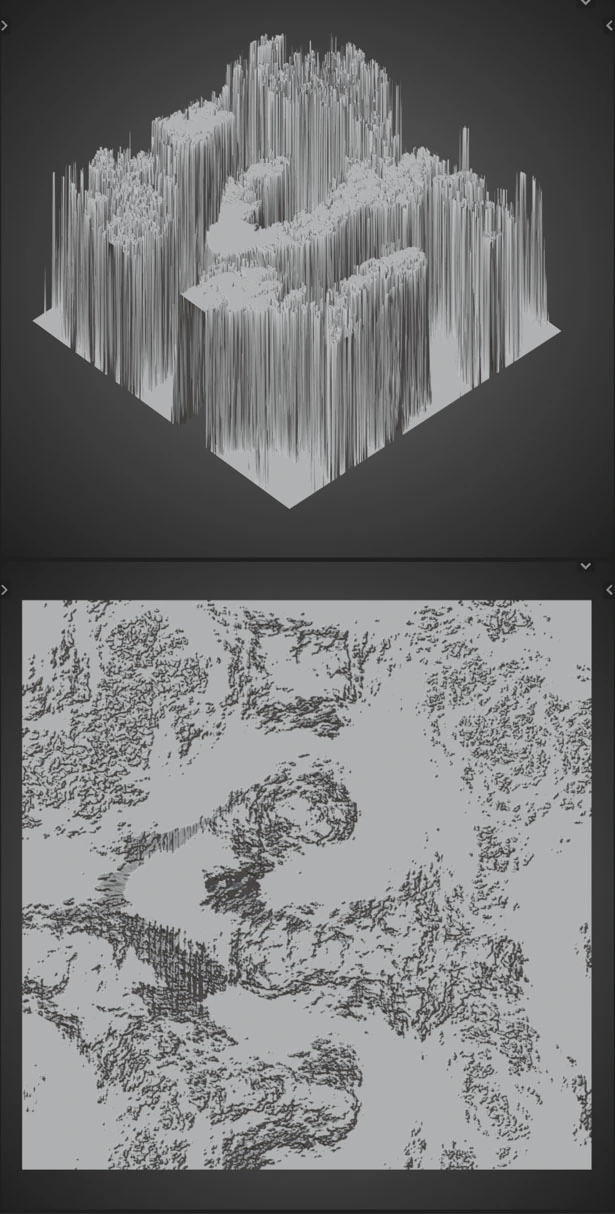 |
 |
 |
Transform
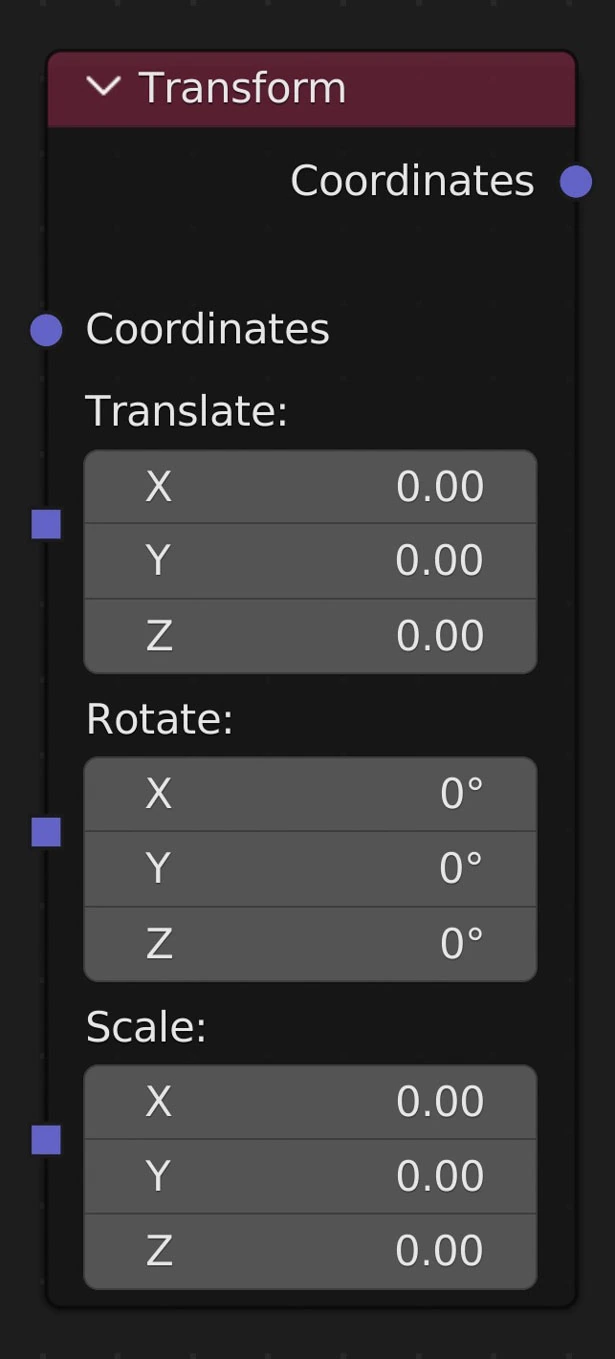
Transform the mesh without affecting the object's transform data
Translate
Move the mesh
Rotate
Rotate the mesh
Scale
Scale the mesh
Vertex Edits
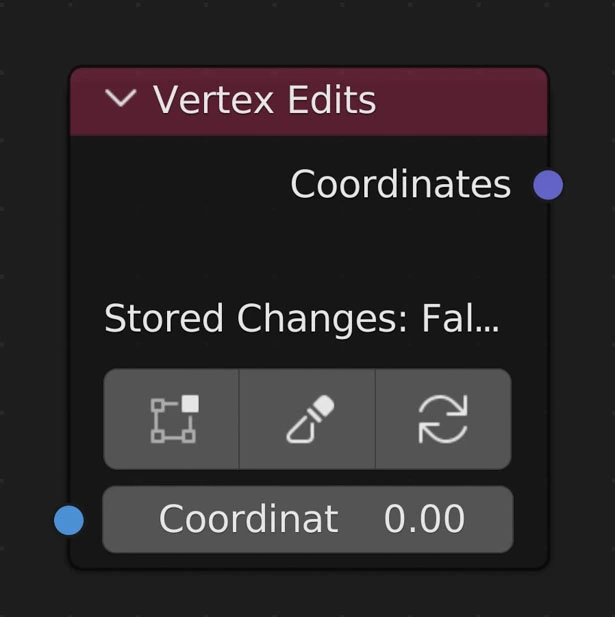
The 'Vertex Edits' node allows you to save manual edits to the geometry from Sculpt Mode or Edit Mode and keep adding and changing node settings.
Save From Edit Mode
Enter into Edit Mode to make changes. Only changes to the Z axis will be saved. The mesh will be reverted and changes not saved if an vertices or edges are added during this mode.
Save From Sculpt Mode
Enter into Sculpt Mode to make changes. Only changes to the Z axis will be saved. Do not turn on Dynamic Topology or else the mesh will be reverted and any changes unsaved.
Clear Vertex Edits
Clicking this button will clear the edits saved to this node
Saving Edits

Saving Edits Example. Here a heart was drawn beforehand using sculpt mode
Changes are saved when clicking either of the Save from Mode buttons which enters into its respective mode for changes to happen. Once Object Mode has been re-entered the new coordinates are compared with the original coordinates and the difference is added to what was saved previously.
- Each Vertex Edits node can save a new and completely different edit.
- The mesh will be updated to the point the Vertex Edits node exists in the tree. So what is visible in Object Mode may change once Save from Mode has been clicked
- Making changes to the Grid node may cause errors. To fix these errors go back to your original density and size OR clear the edits and do them again.